Setting up Information for Salary Basis and Proposed Salary Fields in Offers:
Oracle iRecruitment provides enterprises the flexibility to decide if candidates hired through iRecruitment should have their pay administered using Salary Administration or not. For offers, enterprises can make the Salary Basis and Proposed Salary fields optional or mandatory or base Salary Basis and Proposed Salary on work structure configuration using the IRC: Salary Details Mandatory in Offer profile option.
See: Profile Options in iRecruitment
When you set the IRC: Salary Details Mandatory in Offer profile option value to Based on Work Structure Configuration, you must define the IRC: Proposed Salary Flex Segment Name profile option, which identifies the flex segment that iRecruitment uses to make the Salary Basis and Proposed Salary fields mandatory or optional for offers.
You can set up information at the following work structure levels to make the Salary Basis and Proposed Salary fields either mandatory or optional:
Organization
Job
Position
Grade
Note that the Salary Basis work structure level impacts only the Proposed Salary field.
To make Salary Basis and Proposed Salary fields optional or mandatory in offers, you must create flexfield segments and define values for these segments at the work structure levels. Before you start implementing these steps, plan your requirements and decide the work structure level that you want to use to make the salary details mandatory or optional.
Setting up Information for Salary Basis and Proposed Salary Fields in Offers:Using the Descriptive Flexfield Segments window, create a flexfield segment for the following DFFs. You can define the flexfield segment at any of the work structure levels or at all levels:
| Work structure | Flexfield | Flexfield Segment Example | Value Set |
|---|---|---|---|
| Organization | Add'l Org. Unit Details | Salary Details Reqd | Yes_No |
| Job | Additional Job Details | Salary Details Reqd | Yes_No |
| Position | Additional Position Details | Salary Details Reqd | Yes_No |
| Grade | Additional Grade Details | Salary Details Reqd | Yes_No |
Note: You must provide the same flex segment name if you are creating the flex segment at different levels. The flexfield segment given in the table is just an example. When you create a segment, you can name the segment as per your business requirement.
If you decide to make Salary Basis mandatory at any of the work structure levels, then create a flex segment for the Salary Basis work structure to make the Proposed Salary field mandatory or optional. For example, you can make salary basis mandatory at organization, job, position, or grade level and make proposed salary optional by defining a flexfield segment for the Additional Salary Basis Details flexfield:
| Work structure | Flexfield | Flexfield Segment Example | Value Set |
|---|---|---|---|
| Salary Basis | Additional Salary Basis Details | Salary Details Reqd | Yes_No |
Using the System Profile Values window, enter the flex segment name as the value for the IRC: Proposed Salary Flex Segment Name profile option.
iRecruitment checks the value set for the flex segment at organization, job, position, grade, or salary basis level to make the salary basis and proposed salary basis fields mandatory or optional.
Set the value to Yes or No for the flex segment for all or required work structure components:
Organization: Impacts the Salary Basis and Proposed Salary fields and defines whether they are mandatory or optional.
To set the flex segment value:
Navigate to the Organization window and select the organization to define the flex segment. Click the additional details icon to display the Add'l Org. Unit Details window. Select Yes or No in the flex segment field.
For example, if you decide that all the offers created in an organization, Vision Corporation must have salary basis and proposed salary, then select Yes for the flex segment field.
Job: Impacts the Salary Basis and Proposed Salary fields and defines whether they are mandatory or optional.
To set the flex segment value:
Navigate to the Job window and select the job to define the flex segment. Click the additional details icon to display the Additional Job Details window. Select Yes or No in the flex segment field.
Position: Impacts the Salary Basis and Proposed Salary fields and defines whether they are mandatory or optional.
To set the flex segment value:
Navigate to the Position window and select the position to define the flex segment. Click the additional details icon to display the Additional Position Details window. Select Yes or No in the flex segment field.
Grade: Impacts the Salary Basis and Proposed Salary fields and defines whether they are mandatory or optional.
To set the flex segment value:
Navigate to the Grades window and select the grade to define the flex segment. Click the additional details icon to display the Additional Grade Details window. Select Yes or No in the flex segment field.
Salary Basis: Impacts the Proposed Salary field and defines whether it is mandatory or optional
To set the flex segment value:
Navigate to the Salary Basis window and select the salary basis to define the flex segment. Click the additional details icon to display the Additional Salary Basis Details window. Select Yes or No in the flex segment field.
You can make salary basis mandatory at organization, job, position, or grade level and make proposed salary optional. For example, for the Stores Clerk job, set the Salary Basis as mandatory. Set the value for the Additional Salary Basis Details flex to No for Hourly Salary Basis. When a manager creates an offer for the Stores Clerk job and selects the Hourly Salary Basis, the Proposed Salary field becomes optional.
Note: However, if the Salary Basis field is optional, then the Proposed Salary field also becomes optional, regardless of the Additional Salary Basis Details flex segment set to Yes.
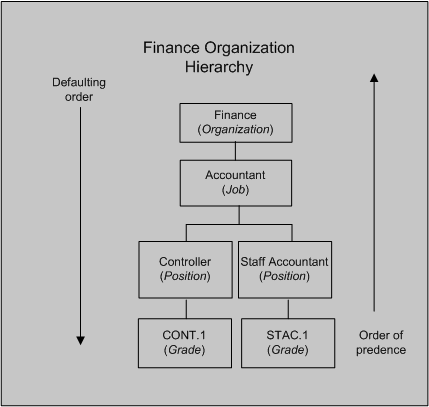
If the flex segment is configured at a higher level for example, for an organization and the flex segment is left blank at the lower levels such as job or position, then the value set at a higher level cascades as a default value to the lower levels. Values set at a lower level, for example, grade, overrides any default from a higher level. The following diagram shows the defaulting order and order of precedence: