Grade/Step Progression is a business process that enables you to move large numbers of employees from one grade or grade step to the next, in an automated, bias-free way.
You do this by defining how employees become eligible for progression and the details of the grade or step to which they are eligible to progress (including the rate of pay associated with the proposed step or grade). Then, you run a pre-process to check which employees are eligible for progression according to your rules. This triggers a post-process that either progresses eligible employees automatically, or identifies them as eligible so that you can approve their progression manually (depending on how you set up Grade/Step Progression). If you have set up Grade/Step Progression to apply automatic salary updates, the application makes these salary changes and passes them to your payroll.
In order to understand Grade/Step Progression, you need to understand the following key concepts:
Grade Ladder
Salary Rates
Progression Rules
At the centre of grade/step progression is the grade ladder. You use the grade ladder to:
Define, categorize and group your grades and steps in the sequence in which your employees typically progress. For example, you might decide to create three grade ladders for your enterprise: one for technical grades, another for management grades, and a third for administrative grades.
Define the rules that determine an employee's eligibility for progression, and optionally add scores to the eligibility criteria to define the employees most eligible to progress, as guidance for manual approvals
Specify pay administration rules for the grades and steps on the grade ladder. For example, define how salaries are updated and passed to payroll when an employee progresses from one grade to the next.
Vary grade and step pay according to employees' individual circumstances.
Determine the type of approval (manual or automatic) required to progress an eligible employee.
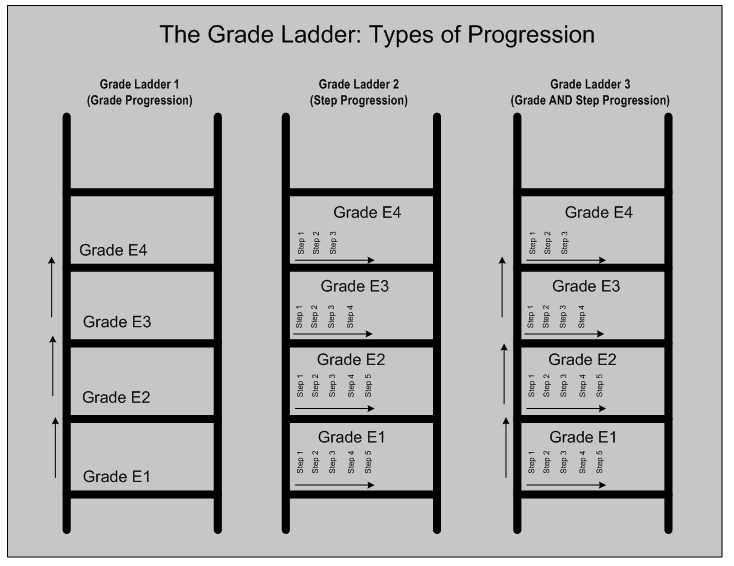
The graphic below illustrates the types of progression the grade ladder supports:
As shown in this graphic, you can set up a grade ladder to progress employees in one of the following three ways:
From one grade to another. Example: Grade E1 to Grade E2.
From one grade step to another grade step (on the same grade). Example: Step 3 on Grade E2 to Step 4 on Grade E2.
From one grade step to another grade step (on another different grade). Example: Step 5 on Grade E2 to Step 2 on Grade E3.
Note: You can only progress employees within the same grade ladder, and not across different grade ladders.
You set up the grade ladder using the Total Compensation Setup Wizard. This wizard guides you through the Grade Ladder setup pages and the tasks you must perform to create the grade ladder.
French Users
For a public sector type organization, you set up the grade ladder using the French Public Sector Corps business area in the Total Compensation Setup Wizard. When you create a grade ladder, Oracle HRMS creates a corps with the same name as that of the grade ladder. You can then set up the corps details.
Note: In a public sector type organization, the grade ladder is the corps and you can progress employees within and across different grade ladders.
Grade/Step Progression enables you to record the pay rates associated with grades and steps (and to make the necessary salary changes when an employee progresses from one grade or step to the next.)
If you are using Grade/Step Progression, these pay rates are known as salary rates. You can enter two types of salary rate:
Default salary rates
Criteria salary rates
Default Salary Rates
Default salary rates represent a single set of values for one grade. For example, if you enter minimum, maximum, and mid-value default salary rates for the grades on your grade ladder, the rate for every assignment on that grade must fall within the specified range. Or, if you are using grade steps, the default salary rate you define for each step applies to every assignment on that step.
Criteria Salary Rates
Criteria salary rates represent different sets of values for the same grade or step. If your enterprise compensates its employees using a group pay model (but without a common pay scale), then you can use criteria salary rates to vary the rates that you pay employees on the same grade.
See: Recognizing Your Grade Implementation Model
For example, your enterprise may use the same grades and steps in all its office locations. However, differences in cost of living mean that you pay your employees different amounts depending on where they work.
To enable you to vary grade and step pay in this way, you use criteria sets and criteria salary rates. If your enterprise varies pay by location only, you could create one criteria set for each location (for example, one for Melbourne, one for Sydney, and one for Perth). Each criteria set would include just one criterion (the location name). You can use any of the following criteria in your criteria sets:
Bargaining Unit
Full Time/Part Time
Job
Location
Organization
Performance Type (including Rating Type information)
Person Type
Rule
Service Area
See: Eligibility Profile Criteria for more information about these criteria
Attention: You can use the above criteria only to create criteria sets for use in Grade/Step Progression. If you use other criteria, the variable rate profile is available as a criteria set in the Total Compensation Setup Wizard, but it contains no criteria.
Having defined unique criteria sets, you can enter the salary rates for each grade and/or step that use different rates of pay.
The application identifies employees who are on the grades (or grade steps) that meet the criteria in your criteria sets. If they meet the criteria, they are eligible for the criteria salary rate. If they do not meet the criteria (for example, they work in the Auckland office, where grade pay does not vary by location), they are eligible for the default salary rate.
If your organization does not use variable rates of pay for the same grade, you need to use only default salary rates and do not need to define criteria salary rates.
Reuse of Existing Grade Rates and Scale Rates
You can upload grade rate and scale rate values created in the Grade Rate and Scale Rate windows to create default salary rates. However, once you have uploaded any existing rates, we recommend that you use the Total Compensation Setup Wizard to maintain salary rates for use in Grade/Step Progression.
Note: If you are not using Grade/Step Progression, you can define grade and scale rates using the Grade Rate and Scale Rate windows only.
French Users
In a public sector type organization, Oracle HRMS derives salary rates from the pay scales that you define. It calculates the salary using the Grade and Step Rate method that uses the index values in the Global Table of Indices - Gross Index (IB) and Increased Index (INM). For a grade, the application derives the salary rates from the increased index in the Global Table of Indices and the legal indemnity rates, in case of legislative pay scales. It uses the salary rate directly, in case of exception pay scales.
As you create the pay scales and then define the grade steps from the progression points, you do not have the option of using progression points for the grade ladder.
To progress employees using Grade/Step Progression, you need to define how a person becomes eligible for progression. You do this using eligibility profiles, which you can attach at grade ladder, grade, or step level:
Grade ladder profiles apply to every grade or step in this grade ladder.
Grade profiles apply to this grade (and its step, if used) in this grade ladder.
Grade step profiles apply to this grade step in this grade ladder.
Note: When you attach an eligibility profile to a grade, you can specify if you want the profile to apply to this ladder only, or to every other grade ladder using this grade. You can only attach step-level profiles to the selected grade ladder.
A profile contains one or more criteria that an employee must meet to become eligible for progression. If their current grade or step is associated with multiple profiles, they must meet the criteria in any mandatory profiles and at least one of the optional profiles
For example, you may want to specify that anyone on this grade ladder must have been on their current grade or step for at least two years before they are eligible for progression, and each grade has additional rules for progression. To address this, you could define the following two rules:
A grade ladder profile that specifies the employee must have been on their current grade or step for a minimum of two years.
Grade level profiles for rules that are specific to each grade.
You can reuse the same eligibility profiles in other grade ladders, grades and steps. You can define eligibility profiles using either the Participation Eligibility Profiles window or directly from the Total Compensation Setup Wizard, then attach them to grade ladders, grades, or steps in the Total Compensation Setup Wizard.
If you set up your grade ladder to rank employees on the basis of the eligibility criteria they satisfy, you must assign scores to the eligibility criteria, using the Participation Eligibility Profiles window. The application computes scores for people, on the basis of applicable eligibility criteria, to arrive at a rank for each person.
Manual Approval
An employee may be eligible for progression to one or more grades or steps. Based on the progression rules you defined, the application progresses the employee automatically to the appropriate grade or step.
If your grade ladder uses manual approval, and the employee is eligible for more than one grade or step, the application proposes the default progression and marks it on the Approvals page.
If you have set up your grade ladder to rank employees to determine the people you want to progress from a group of eligible employees, the application displays the ranks and the computed scores of employees of that grade ladder in the Approvals page.
If you have enabled Workflow for a grade ladder that uses manual approval, the application notifies the managers of the employee for approval of the proposed progressions.
The Grade/Step Progression process determines the default grade or step by applying the following rules:
If you have not assigned a grade ladder to an employee and the employee's current grade is attached to the default grade ladder for the business group, then it uses the default ladder.
If the employee has no current grade associated with their assignment, the process stops.
If the default grade ladder uses both grade and step progression, the process proposes a step based on the Progression Style defined for the grade ladder. The proposal may be to the lowest step in the grade, the next grade (but no step), or to the step with the lowest increase in salary.
If the default grade ladder uses grade progression, the process proposes the next grade in the grade ladder for which the employee is eligible. When grade ladders are set for automatic progression, the Grade/Step Progression process flags the proposed progression so that the post-process can complete this progression. If this grade ladder requires manual approval for all progressions, the default grade or step is shown on the Approvals page for you to reject or approve the progression.
French Users
In a public sector type organization, you can define progression within corps and across corps based on the career path and using the appraisal scores, ranks, and quota restrictions. You can move civil servants across corps if they satisfy all the eligibility conditions for the corps, and the seniority requirements defined for the career path.