Oracle Approvals Management (AME) is a web-based application which is integrated with Oracle Workflow and which enables you to define business rules to control your approvals processes.
With AME, you use the following components to define your approvals processes. They are associated with a transaction type for a particular application.
Attribute - this is a business variable, for example, a salary amount, user ID, or a vacancy status.
Condition - a condition compares an attribute value with a set of allowed attribute values. For example, a condition could look at a salary amount. If the salary is greater than a specified value, a particular approver list is created.
Approval type and approval specifications - these components define the type of approver list that is generated. For example, to generate a supervisor-based approver list with 5 levels, you use the 'supervisory level' approval type with the 'requires approval up to the first 5 approvers' approval specification.
Rules - a rule links the other components together by associating one or more conditions with the approval type and approval rule.
For more information on the components used in AME, see: Oracle HRMS Approvals Management Implementation Guide.
The default behavior of Oracle iRecruitment is to use a supervisor-based approvals hierarchy which is delivered using AME rules.
The default AME configuration consists of:
Transaction types with
a number of attributes and conditions and
a number of rules specifying that a transaction must be approved by the initiator's immediate supervisor if certain conditions are true.
This is based on the standard AME approval type 'chains of authority based on number of supervisory levels'.
For details about the AME components supplied with iRecruitment see: AME Components in iRecruitment
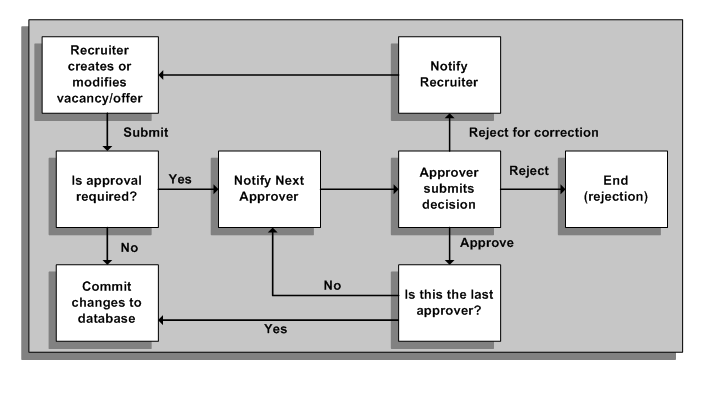
Whenever a manager or recruiter creates or modifies a vacancy or an offer, iRecruitment checks to see if an approval is required for the action that has been taken.
The following diagram shows the approvals cycle, starting with the recruiter creating or modifying a vacancy or an offer.
Approval Process in iRecruitment
When a person is required to approve an action, they are sent a notification, which is displayed on their home page. From here they can do one of the following options:
Approve
If the approver is happy with the suggested changes they can approve them. If they are the final approver, the changes are committed to the database, and the person submitting the vacancy or the offer is notified that their transaction has been approved. If not the approval is routed to the next person in the approvals hierarchy.
Reject
If the approver is not happy with the changes they can reject them. This ends the approval process and the changes submitted for approval are discarded. The person submitting the vacancy is notified of the rejection.
Return for Correction
If the approver wants amendments to be made to the change before they approve them, they can select Return for Correction. This ends the approval process and the person who submitted the change is notified of the need for corrections to be made. Once they have made the changes they submit them for approval again.
When managers create or update vacancies and offers, in addition to the default approvers, they can add approvers and identify recipients of the transaction notifications in the Add Adhoc Approver region of the Create/Update Offer: Review and Create/Update: Review Vacancy pages. Managers can send a For Your Information (FYI) notification or an approval request. They can use the person or user name to add an approver:
Person: Add a person, for example, John Smith
User: Add a user, for example, JSMITH
Managers can specify the approver's' position in the approvals chain (the insertion point). They can:
Insert a new approver either before or after an existing approver in the list.
Add a new approver to the list.
You can configure the Vacancy Approval and Offer Approval transaction types to meet local approval requirements.
Vacancy Approval Transaction Type
You can add rules, conditions, and attributes to the predefined vacancy approval transaction type. For example, the iRecruitment Create Vacancy rule requires one level of approval at the most for creating or updating a vacancy. To enable a process that varies with the number of openings, for example, you can create a new rule requiring three levels of approval for vacancies with 10 or more openings, and add the rule to the predefined transaction type.
Offer Approval Transaction Type
You can add rules, conditions, and attributes to the predefined offer transaction type. By default, the offer approval rule requires one level of approval for offer creation and update. You can modify the default offer approval rule according to your business requirements. For example, you can create a new rule that requires three levels of approvals for offers to senior manager positions and add the rule to the predefined transaction type.
For more information on configuring AME rules, conditions, and attributes, see: Oracle HRMS Approvals Management Implementation Guide.
Some examples of minor changes that you can make to the customized transaction type are shown below.
To define a different approval level for the creation of vacancies or offers, for example, to specify that a vacancy or an offer must be approved by a specific number of approvers:
The approval level for a vacancy is currently defined in the rule 'iRecruitment Create Vacancy'. You can define a new approval level for the supervisory level approval type that 'requires approval up to the first two superiors at most'.
The approval level for an offer is currently defined in the rule 'iRecruitment Offer Approval' You can define a new approval level for the supervisory level approval type that 'requires approval up to the first three superiors at most'.
To define a new approval level (if the delivered approvals do not meet your requirements):
You create a new approval (for example, 'requires approval up to the first 15 superiors at most') in the 'supervisory level' approval type. You then apply this to whichever rules are required.
To define a particular user as the final approver, or final authority (even if they are not the last person in the approval chain):
You create a List Modification Condition and specify a user, for example, a manager, as the final approver. You would add this list modification condition to your rules so that the approval chain would stop at this specified approver.