
You can test your Business Event System setup using the Workflow Agent Ping/Acknowledge workflow. This workflow sends a ping event message to each inbound agent on the local system or on external systems, and waits to receive an acknowledgement event message from each of the agents. If the workflow completes successfully, then the basic Business Event System setup for communication with these agents is complete.
The Workflow Agent Ping/Acknowledge workflow consists of two processes, the Master Ping process and the Detail Ping process. To ping all inbound agents, launch the Master Ping process, specifying a unique item key and the outbound agent on the local system for sending the pings. To ping a particular inbound agent, specify that agent as well when you launch the process.
Note: The item key for a process instance can only contain single-byte characters. It cannot contain a multibyte value.
When you launch the Master Ping process without specifying a particular agent to ping, the Workflow Engine identifies all the inbound agents that you have defined on the local system or on external systems and launches a Detail Ping process for each agent. The master process then waits for each detail process to complete. If you do specify an inbound agent to ping, the Workflow Engine launches a Detail Ping process only for that agent.
Note: The Workflow Agent Ping/Acknowledge workflow tests all inbound agents except the standard WF_DEFERRED and WF_ERROR agents and agents that do not use the WF_EVENT_QH queue handler.
The Detail Ping process begins by sending a Ping Agent event to the inbound agent identified by the master process. The detail process places a Ping Agent event message on a queue associated with the specified outbound agent on the local system. The event message is addressed to the inbound agent and contains a correlation ID that identifies the detail process to which it belongs. AQ propagation transmits the event message from the outbound queue to the queue associated with the specified inbound agent.
On the receiving system, the listener for the inbound agent dequeues the Ping Agent message the next time it runs. When the event message is dequeued, the Event Manager searches for and executes any active subscriptions to the Ping Agent event or the Any event on that system that have a source type of External.
When the predefined External subscription to the Ping Agent event is executed, its rule function places an Acknowledge Ping event message on a queue associated with an outbound agent on that system. The event message is addressed to an inbound agent on the originating system and includes the correlation ID from the Ping Agent event message. AQ propagation transmits the Acknowledge Ping event message from the outbound queue to the queue associated with the specified inbound agent.
On the originating system, the listener for the inbound agent dequeues the Acknowledge Ping message the next time it runs. When the event message is dequeued, the Event Manager searches for and executes any active subscriptions to the Acknowledge Ping event or the Any event on that system that have a source type of External.
When the predefined External subscription to the Acknowledge Ping event is executed, its rule function, which is the default rule function, sends the event message to the Detail Ping process. The Workflow Engine uses the correlation ID to match the message with the running detail process to which it belongs. After receiving the event message, the Detail Ping process completes.
Finally, after all the detail processes are complete, the master process also completes. The amount of time needed to complete the Workflow Agent Ping/Acknowledge workflow depends on how often the listeners run to dequeue messages from the inbound agents.
The following examples describe how to perform ping tests for different use cases.
Case 1: Broadcast Ping to Local Inbound Agents OnlyFollow this procedure if you send events only to inbound agents on your local system and do not have any connections set up to external systems.
Schedule propagation for the outbound agent on the local system that you want to use to send the pings, such as WF_OUT. You can use the Distributed Database Management feature to manage AQ, including scheduling propagation, through Oracle Enterprise Manager. See: Oracle Enterprise Manager Support, Oracle Streams Advanced Queuing User's Guide and Reference, and Distributed Management in the Oracle Enterprise Manager online help.
You can also schedule propagation manually by running the DBMS_AQADM.Schedule_Propagation API. For example:
begin
DBMS_AQADM.Schedule_Propagation('APPLSYS.WF_OUT', null, sysdate, null, 'SYSDATE+(120/86400)', 60);
end;
/
Launch the Workflow Agent Ping/Acknowledge workflow, selecting the Master Ping process as the process to run and specifying a unique item key and the outbound agent on the local system for sending the pings. You can use the Launch Processes Web page to launch the Workflow Agent Ping/Acknowledge workflow. See: Testing Workflow Definitions Using the Developer Studio.
You can also launch the workflow manually. For example:
declare
itype varchar2(8):='WFPING';
ikey varchar2(10):='<item_key>';
wfprocess varchar2(10):='WFMSTPNG';
outAg varchar2(100):='WF_OUT@<local_system>';

begin
fnd_global.APPS_INITIALIZE( 0, -1, -1 , 0 );
wf_engine.createprocess(itemtype=>itype, itemkey=>ikey, process=>wfprocess);

wf_engine.SetItemAttrText(itemtype=>itype, itemkey=>ikey, aname=>'OUTAGENT', avalue=>outAg);

wf_engine.startprocess(itemtype=>itype, itemkey=>ikey);
commit;
end;
/
Verify that the Ping Agent event was enqueued on the WF_OUT agent's queue and propagated to the inbound agents' queues. You can use Oracle Workflow Manager to verify the processing of the Ping Agent event messages. See: Agents.
You can also use SQL*Plus commands to verify the processing of the events. For example, to check the WF_OUT agent's queue, use the following command:
SQL> select o.* from applsys.aq$wf_out o where trunc (enq_time) >= trunc(sysdate) order by enq_time desc ;
To check the WF_IN agent's queue, use the following command:
SQL> select i.* from applsys.aq$wf_in i where trunc (enq_time) >= trunc(sysdate) order by enq_time desc ;
You can also check the other inbound agents using similar commands.
Run agent listeners on the inbound agents to process the Ping Agent events. You can use Oracle Workflow Manager to submit and manage agent listeners. See: Scheduling Listeners for Local Inbound Agents and the Oracle Applications Manager online help.
You can also run listeners for inbound agents manually by running the WF_EVENT.Listen API. For example, to run listeners for the WF_IN and WF_REPLAY_IN agents, use the following commands. You can add similar commands to run listeners for any other inbound agents as well.
set serveroutput on size 1000000;

declare
l_replay varchar2(100) := 'WF_REPLAY_IN';
l_wfin varchar2(10):='WF_IN';
l_agent varchar2(20);
l_msg_count number := 15;
l_err_count number :=0;
l_corrid varchar2(100);

begin
fnd_global.APPS_INITIALIZE( 0, -1, -1 , 0 );

l_agent := l_replay;
wf_event.listen(p_agent_name=>l_agent, p_wait=>dbms_aq.no_wait, p_correlation=>l_corrid, p_message_count=>l_msg_count, p_max_error_count=>l_err_count);

dbms_output.put_line(l_agent||' Processed Messages: '||l_msg_count);
dbms_output.put_line(l_agent||' Errored Messages : '||l_err_count);
commit;

l_agent := l_wfin;
wf_event.listen(p_agent_name=>l_agent, p_wait=>dbms_aq.no_wait, p_correlation=>l_corrid, p_message_count=>l_msg_count, p_max_error_count=>l_err_count);

dbms_output.put_line(l_agent||' Processed Messages: '||l_msg_count);
dbms_output.put_line(l_agent||' Errored Messages : '||l_err_count);
commit;
end;
Verify that the Acknowledge Ping events are enqueued on one of the inbound agents, such as WF_IN. There should be one Acknowledge Ping event for each inbound agent to which a Ping Agent event was originally sent. The Business Event System enqueues all the Acknowledge Ping events on the first inbound agent it finds on the local system, often WF_IN. You can either use Oracle Workflow Manager or perform the verification using SQL*Plus commands, as in step 3.
Run an agent listener on the inbound agent where the Acknowledge Ping events are enqueued to process those events. You can use Oracle Workflow Manager to run an agent listener or run a listener manually, as in step 4.
Use the Status Monitor to check the progress of the Workflow Agent Ping/Acknowledge workflow and verify that the Master Ping process and all the Detail Ping processes are complete. See: Viewing Workflows in the Status Monitor.
Follow this procedure if you want to test a particular inbound agent on an external system.
Define database links from your local system to the external system and from the external system to your local system. You can use Oracle DBA Studio in Oracle Enterprise Manager to create database links. See the Oracle Enterprise Manager online help.
You can also create database links manually in SQL*Plus. For example, if your local system is system A and the external system is system B, use the following syntax on system A to create a database link to system B:
SQL>
CREATE PUBLIC DATABASE LINK B.example.com
CONNECT TO apps IDENTIFIED BY <password>
USING '(DESCRIPTION=(ADDRESS=(PROTOCOL=tcp)(HOST=<host_name>)(PORT=<port_number>))
(CONNECT_DATA=(SID=B)))';
Use a similar command on system B to create a database link to system A.
On both the local system and the external system, schedule propagation from the outbound agent that you want to use to send the pings, such as WF_OUT, to the other system. You can use the Distributed Database Management feature to manage AQ, including scheduling propagation, through Oracle Enterprise Manager. See: Oracle Enterprise Manager Support, Oracle Streams Advanced Queuing User's Guide and Reference, and the Oracle Enterprise Manager online help.
You can also schedule propagation manually by running the DBMS_AQADM.Schedule_Propagation API. For example, use the following command to schedule propagation from the WF_OUT agent on system A to system B:
begin
DBMS_AQADM.Schedule_Propagation('APPLSYS.WF_OUT', B.example.com, sysdate, null, 'SYSDATE+(120/86400)', 60);
end;
/
Use a similar command on system B to schedule propagation to system A.
Register both systems with each other so that each system has the definition of the other system and that system's inbound agents stored in its Event Manager. See: Registering External Systems.
Launch the Workflow Agent Ping/Acknowledge workflow, selecting the Master Ping process as the process to run and specifying a unique item key, the outbound agent on the local system for sending the ping, and the inbound agent on the external system that should receive the ping. You can use the Launch Processes Web page to launch the Workflow Agent Ping/Acknowledge workflow. See: Testing Workflow Definitions Using the Developer Studio.
You can also launch the workflow manually. For example, to send a point-to-point ping to the WF_IN agent on the external system, use the following commands:
declare
ename varchar2(100):=null;
itype varchar2(8):='WFPING';
ikey varchar2(10):='<item_key>';
wfprocess varchar2(10):='WFMSTPNG';
outAg varchar2(100):='WF_OUT@<local_system>';
toAg varchar2(100):='WF_IN@<external_sytem>';
ekey varchar2(100);

begin
fnd_global.APPS_INITIALIZE( 0, -1, -1 , 0 );
wf_engine.createprocess(itemtype=>itype, itemkey=>ikey, process=>wfprocess);

wf_engine.SetItemAttrText(itemtype=>itype, itemkey=>ikey, aname=>'EVNTKEY', avalue=>ekey);
wf_engine.SetItemAttrText(itemtype=>itype, itemkey=>ikey, aname=>'OUTAGENT', avalue=>outAg);
wf_engine.SetItemAttrText(itemtype=>itype, itemkey=>ikey, aname=>'TOAGENT', avalue=>toAg);

wf_engine.startprocess(itemtype=>itype, itemkey=>ikey);
commit;
end;
/
Run an agent listener on the inbound agent on the external system to process the Ping Agent event. You can use Oracle Workflow Manager to run an agent listener or run a listener manually, as in step 4 of case 1.
Run an agent listener on the inbound agent on the local system where the Acknowledge Ping event is received to process that event. You can use Oracle Workflow Manager to run an agent listener or run a listener manually, as in step 4 of case 1.
Use the Status Monitor to check the progress of the Workflow Agent Ping/Acknowledge workflow and verify that the Master Ping process and the Detail Ping process are complete. See: Viewing Workflows in the Status Monitor.
Follow this procedure if you want to test all inbound agents on your local system as well as any inbound agents on external systems registered in your local system.
Define database links from your local system to all the external systems you want to connect to, and from the external systems to your local system. You can use Oracle DBA Studio in Oracle Enterprise Manager to create database links or create the database links manually, as in step 1 of case 2.
On the local system schedule propagation from the outbound agent that you want to use to send the ping messages, such as WF_OUT, to the other systems. On the external systems, schedule propagation from the outbound agent there to your local system. You can use the Distributed Database Management feature to manage AQ, including scheduling propagation, through Oracle Enterprise Manager, or schedule propagation manually, as in step 2 of case 2.
Register all the external systems with your local system, and register the local system with each external system. See: Registering External Systems.
Launch the Workflow Agent Ping/Acknowledge workflow, selecting the Master Ping process as the process to run and specifying a unique item key and the outbound agent on the local system for sending the ping. Leave the inbound agent parameter null to send a broadcast ping to all inbound agents on the local system or external systems. You can use the Launch Processes Web page to launch the Workflow Agent Ping/Acknowledge workflow. See: Testing Workflow Definitions Using the Developer Studio.
You can also launch the workflow manually. For example:
declare
ename varchar2(100):=null;
itype varchar2(8):='WFPING';
ikey varchar2(10):='<item_key>';
wfprocess varchar2(10):='WFMSTPNG';
outAg varchar2(100):='WF_OUT@<local_system>';
toAg varchar2(100):=null;
ekey varchar2(100);

begin
fnd_global.APPS_INITIALIZE( 0, -1, -1 , 0 );
wf_engine.createprocess(itemtype=>itype, itemkey=>ikey, process=>wfprocess);

wf_engine.SetItemAttrText(itemtype=>itype, itemkey=>ikey, aname=>'EVNTKEY', avalue=>ekey);
wf_engine.SetItemAttrText(itemtype=>itype, itemkey=>ikey, aname=>'OUTAGENT', avalue=>outAg);
wf_engine.SetItemAttrText(itemtype=>itype, itemkey=>ikey, aname=>'TOAGENT', avalue=>toAg);

wf_engine.startprocess(itemtype=>itype, itemkey=>ikey);
commit;
end;
/
Run agent listeners on the inbound agents on the local system and the external systems to process the Ping Agent events. You can use Oracle Workflow Manager to run agent listeners or run listeners manually, as in step 4 of case 1.
Run an agent listener on the inbound agent on the local system where the Acknowledge Ping events are received to process those events. You can use Oracle Workflow Manager to run an agent listener or run a listener manually, as in step 4 of case 1.
Use the Status Monitor to check the progress of the Workflow Agent Ping/Acknowledge workflow and verify that the Master Ping process and all the Detail Ping processes are complete. See: Viewing Workflows in the Status Monitor.
The Workflow Agent Ping/Acknowledge process is associated with an item type called Workflow Agent Ping/Acknowledge. Currently there are two workflow processes associated with Workflow Agent Ping/Acknowledge: Master Ping Process and Detail Ping Process.
To view the details of the Workflow Agent Ping/Acknowledge item type in the Workflow Builder, choose Open from the File menu. Then connect to the database and select the Workflow Agent Ping/Acknowledge item type, or connect to a file called wfping.wft in the <ORACLE_HOME>\wf\Data\<language> directory on your file system.
If you examine the property page of Workflow Agent Ping/Acknowledge, you see that it has a persistence type of Temporary and persistence number of days of 0. This means that the runtime data associated with any work items for this item type are eligible for purging as soon as they complete.
The Workflow Agent Ping/Acknowledge item type also has several attributes associated with it. These attributes reference information in the Workflow application tables. The attributes are used and maintained by function activities as well as event activities throughout the process. The following table lists the Workflow Agent Ping/Acknowledge item type attributes.
Workflow Agent Ping/Acknowledge Item Type Attributes
| Display Name | Description | Type | Length/Format/Lookup Type |
|---|---|---|---|
| To Agent | The inbound agent that receives the event message, in the format <agent>@<system> | Text | |
| Event Name | The internal name of the event | Text | |
| Out Agent | The outbound agent that sends the event message, in the format <agent>@<system> | Text | |
| Event Key | The event key that uniquely identifies the specific instance of the event | Text | |
| Event Message | The event message | Event |
To view the properties of the Master Ping process, select the process in the navigator tree, and then choose Properties from the Edit menu. This process activity is runnable, indicating that it can be initiated as a top level process to run.
When you display the Process window for the Master Ping process, you see that the process consists of four unique activities. To examine the activities of the process in more detail, we have numbered each node for easy referencing below. The numbers themselves are not part of the process diagram.
Master Ping Process Diagram
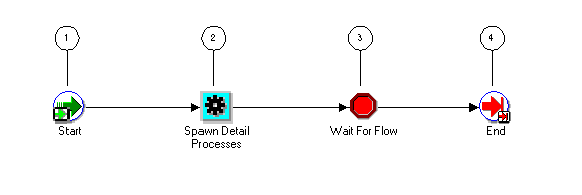
The Workflow Agent Ping/Acknowledge workflow begins when you launch the Master Ping Process using the Developer Studio. You can optionally provide a to agent, event name, out agent, event key, and event message. See: Testing Workflow Definitions Using the Developer Studio.
The workflow begins at node 1 with the Start activity. At node 2, the master process spawns a detail process for each inbound agent that you have defined on the local system or on external systems. The detail process pings the agent by sending it a Ping Agent event and waits to receive an acknowledgement in the form of an Acknowledge Ping event.
Node 3 is a Wait for Flow activity that waits for all the detail processes to complete. When all the detail processes have completed, the master process ends.
Following is a description of each activity in the process, listed by the activity's display name.
This Standard function activity marks the start of the process.
| Function | WF_STANDARD.NOOP |
| Result Type | None |
| Prerequisite Activities | None |
This function activity identifies all the inbound agents that you have defined on the local system or external systems, and spawns a Detail Ping process for each agent. The function sets the Ping Agent event (oracle.apps.wf.event.test.ping) as the event to be sent to the Detail Ping processes.
| Function | WF_EVENT_PING_PKG.LAUNCH_PROCESSES |
| Result Type | None |
| Prerequisite Activities | None |
| Item Attributes Set by Function | Event Name, To Agent |
This Standard function activity pauses the flow until the corresponding detail processes complete a specified activity.
| Function | WF_STANDARD.WAITFORFLOW |
| Result Type | None |
| Prerequisite Activities | Spawn Detail Processes |
This Standard function activity marks the end of the process.
| Function | WF_STANDARD.NOOP |
| Result Type | None |
| Prerequisite Activities | Wait for Flow |
To view the properties of the Detail Ping process, select its process activity in the navigator tree, and then choose Properties from the Edit menu. This process activity is runnable, indicating that it can be initiated as a top level process to run.
When you display the Process window for the Detail Ping process, you see that the process consists of five unique activities. To examine the activities of the process in more detail, we have numbered each node for easy referencing below. The numbers themselves are not part of the process diagram.
Detail Ping Process Diagram
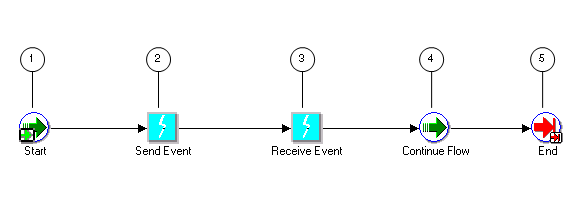
The Detail Ping process begins when it is launched by the Master Ping process. See: Summary of the Master Ping Process.
The workflow begins at node 1 with the Start activity. At node 2, the process sends a Ping Agent event to the selected inbound agent. At node 3, the process waits to receive an Acknowledge Ping event back from the agent. When the acknowledgement is received, the master process can continue. The detail process ends at this point.
Following is a description of each activity in the process, listed by the activity's display name.
This Standard function activity marks the start of the process.
| Function | WF_STANDARD.NOOP |
| Result Type | None |
| Prerequisite Activities | None |
This event activity sends the Ping Agent event (oracle.apps.wf.event.test.ping) from an outbound agent on the local system to the inbound agent identified by the master process. The event message includes a correlation ID that identifies the detail process to which it belongs.
| Event Action | Send |
| Prerequisite Activities | None |
| Item Attributes Retrieved by Activity | Event Message, Event Name, Event Key, To Agent, Out Agent |
This event activity receives the Acknowledge Ping event (oracle.apps.wf.event.test.ack) that is returned to the originating system from the system that received the Ping Agent event. The Acknowledge Ping event message contains the correlation ID, which the Workflow Engine uses to match the event message with the detail process to which it belongs.
| Event Action | Receive |
| Event Filter | oracle.apps.wf.event.test.ack |
| Prerequisite Activities | Send Event |
| Item Attributes Set by Activity | Event Name, Event Key, Event Message |
This Standard function activity marks the position in the detail process where, upon completion, the corresponding halted master process will continue.
| Function | WF_STANDARD.CONTINUEFLOW |
| Result Type | None |
| Prerequisite Activities | Receive Event |
This Standard function activity marks the end of the process.
| Function | WF_STANDARD.NOOP |
| Result Type | None |
| Prerequisite Activities | Continue Flow |