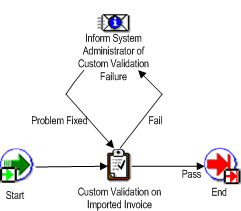
The Payables Open Interface Workflow is a workflow template that must be customized before it processes any data. If the workflow is submitted before customization it will run but no validation or actions are performed. You cannot replace this workflow with a new process. You can customize the Payables Open Interface Workflow to help automate verification and validation of data in the Payables Open Interface tables before you submit Payables Open Interface Import. For example, you can modify this workflow to validate all accounting code combinations in the Payables Open Interface tables. Your workflow can send notifications of any invalid code combinations to a specified user for correction. You can also customize the workflow to override any invalid code combinations with a designated default value. Using Oracle Workflow, you can add workflow rules that meet the specific requirements of your business. If you implement this workflow, then once an invoice record has successfully completed workflow, it is ready to be imported into the Oracle Payables application tables.
When the workflow is submitted it looks at all data in the AP_INVOICES_INTERFACE table that meets the parameters specified and has a value of 'Y' in the WORKFLOW_FLAG column.
Records from Oracle sources are saved with no value for WORKFLOW_FLAG. If you want the workflow to select records with a null value for WORKFLOW_FLAG then you will need to write a customization to change the value for those records to 'Y'. For example, you could write a concurrent program to update the workflow flag to 'Y' for records with a null WORKFLOW_FLAG, the source of Quick Invoices, and a null status.
Workflow sets a temporary value of 'S' for 'Selected' when it processes the invoice. Once an invoice has successfully completed workflow the value is set to 'D' for 'Done'. Invoices that have the value of 'D' or null in this column are ready to be imported into the application tables using the Payables Open Interface Import.
When an invoice fails workflow, a notification is sent via e-mail to the individual set up in workflow as the performer. The responsible individual can act based on the e-mail. Alternatively, the individual can periodically use the Oracle Applications Notification window to query and review data that has failed the workflow. If you choose the References button in that window, the system navigates to the Open Interface Invoices window. You can use this window to correct data in the interface tables for any invoices that are not from the Quick Invoices window. If you need to correct invoice records that were entered in the Quick Invoices window, then use the Quick Invoices window. Once you correct the data, return to the Oracle Applications Notification window, and choose the Respond button. Enter Problem Fixed. Oracle Payables automatically resubmits the invoice to workflow.
Suggestion: To schedule the automatic import of data and initiation of workflow as a recurring process, use the Submit Request Set window. For example, if you integrate with Oracle e-Commerce Gateway for inbound invoices, you may want to create a request set containing the three programs, e-Commerce Invoice Inbound, Payables Open Interface Workflow, and Payables Open Interface Import. You can schedule this request set to run regularly, for example, every six hours.
The program can be added to a request set along with the Payables Open Interface Import routine to handle a complete loading of data into the application tables. This task describes how to submit the process individually.
Customize the workflow validation. Edit the procedure Do_Custom_Validation. This procedure is stored in $AP_TOP/admin/sql/apiiwkfb.pls. Edit the file and compile it against the server. The name of the workflow is AP Open Interface Import Workflow. If you want to process invoice records from the Quick Invoices window, customize the workflow to select invoice records with a null WORKFLOW_FLAG.
Assign Performer: Set up the individual who should receive notification of the workflow event.
Populate the WORKFLOW_FLAG column in the AP_INVOICES_INTERFACE table with a value of 'Y' in order for Workflow to perform action on an invoice. If you have customized Workflow to additionally select records with the WORKFLOW_FLAG set to null, then if you do not want a record selected for import, set the flag to D
You submit this program from the Submit Request window. It will process all records that have not yet been processed. See: Submitting Standard Reports, Programs, and Listings.
Source. If you want to limit Workflow to records with a particular source, enter the source exactly as it appears in the Oracle Payables Lookups window. Leave blank if you want Workflow to process records regardless of source.
Group. If you want to limit Workflow to records with a particular group, enter the group. If you entered the invoices in the Quick Invoices window, then enter the Quick Invoices Batch name. Leave blank if you want Workflow to process records regardless of group.
Other Sources
Oracle Workflow User Guide
