User-defined attributes capture all the detailed information (such as cost information) about an object (items, change requests or change orders). The item catalog enables you to create user-defined attributes with validation logic to support the needs of your organization. To do so, create value sets and associate the value sets with user-defined attributes. Attributes can have a static or dynamic list of valid values, or a range of values.
For each user-defined attribute, you can optionally specify a value set with data type and validation rules to be applied when the user inputs data. Once created, value sets can be reused for different attributes. It is recommended that you create your value set before defining your attribute groups.
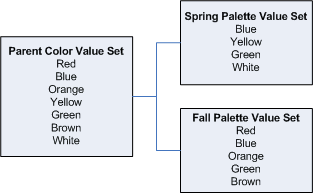
You can also create child value sets that are subsets of a parent value set. The parent value set includes all possible values while the child value sets include some of the values from the parent value set. Use parent and child value sets for variant attributes when creating SKUs from style items (see: Overview of Style and SKU Items).
Parent and Child Value Set ExampleA clothing retailer sells a certain style of shirt in different colors for different seasons. Define all colors in the parent value set, then define a child value set for each season.
When creating the color variant attribute, specify the parent value set for the attribute. When creating the style item, you can choose either the parent or one of the child value sets for the color variant attribute.
Prior to creating value sets for user-defined attributes establish the validation rules for each attribute as follows:
Choose the data type for the values.
Know the range of the values.
Know which set of actual values will satisfy the required condition for the attribute. For static values, specify a fixed set of values. Dynamic values are retrieved from a database table or view.
Select the manner in which the values will be displayed: list of values (LOV), pop list (dropdown) or radio group.
The following table shows the validation rules for the attribute group Benchmark Rating.
| Attribute Group | Attributes | Data Type | Value Range | Values | Display | Create Value Sets |
| Benchmark Rating | Risk Rating | Number | 1 to 5 | Static: 1,2,3,4,5 | Pop list | Rating |
| Benchmark Rating | Quality Rating | Number | 1 to 5 | Static: 1,2,3,4,5 | Pop list | Rating |
| Benchmark Rating | I/O Subsystem Rating | Number | 1 to 5 | Static: 1,2,3,4,5 | Pop list | Rating |
| Benchmark Rating | Video System | Number | 1 to 5 | Static: 1,2,3,4,5 | Pop list | Rating |
| Benchmark Rating | Overall Rating | Number | 1 to 5 | Static: 1,2,3,4,5 | Pop list | Rating |
| Benchmark Rating | Failure Rate | Number | Min 0 Max100 | Within the range | Text Field | Percent Range |
| Benchmark Rating | Supplier | Char | N/A | Dynamic: Queried from tables in the database | LOV | Primary Supplier |
If you need a Yes or No value set, you can use the seeded value set EGO_YES_NO. This value set automatically displays when you set the Display As field to "Checkbox" for the attribute. You can see some of the seeded value sets on the Value Set page; these are used to support images and attachments in the long description on the Item Summary pages.
Additional Information: You can import value sets using open interface tables and the concurrent program EGO Import Metadata (EGOIMDCP). For more information, refer to Importing Item Catalog Metadata
 To create a value set:
In the Applications tree menu, click the "Setup Workbench" link.
On the Search: Catalog Categories page, click the Value Sets tab.
On the Maintain Value Sets page, click Create.
On the Create Value Set page, enter the following information:
Value Set Name
The name by which the system and users keep track of the value set. You can only enter alphanumeric (a, b, c,..., 1, 2, 3,...) and the underscore ( _) characters for the value set name. You cannot use spaces or special characters. The length is limited to 15 characters.
Attention: Once specified, you cannot edit the value set name.
Description
Optionally, enter a description of the value set.
Data Type
The data type of the value set. The data type that you select determines the values that are available in the value set. An attribute's data type must match the data type specified for that attribute's value set. The different data types are:
Character
Number
Standard Date
Standard Date Time
Attention: You cannot edit the data type once the value set has been created.
Warning: You cannot create SKUs with the following variant attribute data types:
Standard Date
Standard Date Time
Translatable Text
Maximum Size
Specify the value for Maximum Size if you wish to limit the user's input in the attribute text field. For example, in some cases you may wish to limit the number of characters in the attribute Date to 10 characters, or the number of characters in Name to 50. Keep the default value of 0 if you wish to omit this particular validation.
Validation Type
A set of values against which the values entered by users are validated. Choices are:
None
There is no explicit set of values against which the user's input is validated.
Independent
The explicit values against which the user's input is validated are defined here. To create explicit values, select Table and click Apply and Continue to edit information on the Enter Validation Table Information page. If you select this validation type, see: Creating Independent Values. Select the "Poplist" radio button to display valid values as a drop-down list. Select the "List of Values" radio button to display valid values as a searchable list of values.
Translatable Independent
This validation type behaves the same as Independent, but enables the display of values in another language.
Table
The explicit values against which the user's input is validated comes from a database table. To create explicit values, select Independent and click Add Values or click Table and then click Edit Table Information. If you select this validation type, see: Defining Table Value Sets.
Additional Information: Display value sets using the Table validation type as a list of values (LOV) or as a pop list.
Display Type
Poplist
Additional Information: Display as Radio Group can be set while creating or editing attributes. See: Defining Item Attributes and Attribute Groups. Oracle recommends that when you use the value set type Independent, you save it as a pop list.
List of Values
Attention: You can associate the Value Set to an attribute only if the above conditions are satisfied and the Security Type is 'No Security'. Value sets created in forms with a security type are not applicable for PLM/PIM and are not visible in the HTML user interface.
Optionally specify a Minimum Value and Maximum Value in the "Value Range" section. If you selected the Validation Type "None" and a data type of "Number," "Standard Date," or "Standard Date Time," you can enter a minimum and maximum value for your value set. If the data type is "Standard Date" or "Standard Date Time," you can substitute the $SYSDATE$ token for the current date. $SYSDATE$ is a min/max value placeholder that is replaced by the current day on the day the user enters a value for the attribute. You can also add or subtract whole numbers from $SYSDATE$. For example, "$SYSDATE$ - 4" would be four days prior to the current date.
Click Apply to stop after creating one value set or click Apply and Continue to create another value set.
Attention: The system's user-defined attributes framework does not support the following value set options. These options can be defined using the flex-fields value set forms.
Uppercase only
Number only
Precision
The Value Set Details page is displayed upon completion. You can edit certain settings after creation by clicking Update. You can find all existing value sets on the Value Sets page. You can search for value sets using the criteria Name, Description, Data type, or Validation type, as well as search for values within value sets. Optionally, add a description to a value.
To create a child value set:After creating a value set, the system returns you to the Maintain Value Sets page. You can create a child value set directly from this page or from the Value Set Details page.
You can only create a child value set when the parent value set has a validation type of Independent or Translatable Independent.
In the Applications tree menu, click the "Setup Workbench" link.
On the Search: Catalog Categories page, click the Value Sets tab.
On the Maintain Value Sets page, click the Create Child Value Set icon for a value set.
Alternatively, select the value set name. From the Value Set Details page, in the Child Value Sets region, click Create.
In the Create/Edit Child Value Set page, enter the following information:
Child Value Set Name
The name by which the system and users keep track of the child value set. You can only enter alphanumeric (a, b, c,..., 1, 2, 3,...) and the underscore ( _) characters for the child value set name. You cannot use spaces or special characters. The length is limited to 15 characters.
Attention: Once specified, you cannot edit the child value set name.
Description
Optionally, enter a description of the child value set.
Select Values
Select a value from the parent value set and use the arrow buttons to move (or remove) the value into the child value set.
Once you have selected all of the values for the child value set, click Apply.
