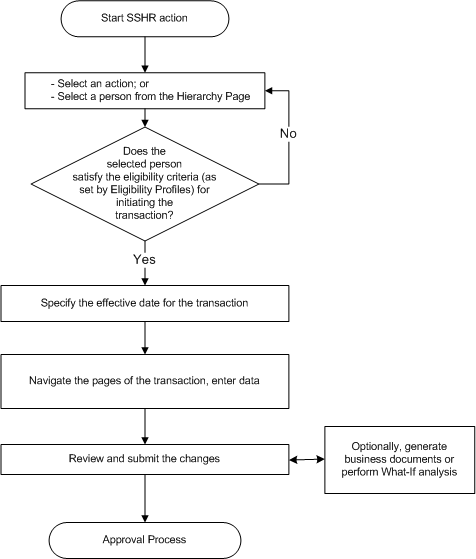
Oracle delivers a powerful and flexible set of tools in self-service actions. Your implementation team has many options to choose from as it decides which features are available, and how your process flow looks and feels. The following sections describe how to initiate an action, and possible exceptions resulting from implementation choices.
Begin a self-service action by opening a list of persons from the Main Menu.
Your implementation team chooses to display a supervisory hierarchy of your direct reports and subordinates, or a position hierarchy. You can also select a MyList view, displaying people you choose. Your implementation team determines whether the hierarchy or MyList view is the default. View options include expanding and collapsing nodes on the tree, and focusing on one person and his or her subordinates.
Note: HR representatives typically use the MyList view to display people for whom they are responsible.
Your implementation team also determines whether multiple assignments appear in person/assignment combinations, and whether contingent workers appear.
Advanced Search criteria enable you to refine a person search by specifying criteria such as business groups, person types, department, or position.
To request a change, choose the Action icon associated with a person. The Actions page appears.
Note: From any person/assignment row, you can optionally choose a Details icon that provides information about that person and assignment.
Your implementation team may choose to display preselected actions on your Main Menu, consistent with older versions of SSHR. Oracle recommends that you open your person list by selecting Manager Actions from the Main Menu. From this single point of entry, you can see all available actions, and the selected person's eligibility for them. With preselected actions, you restrict yourself to the single action you have selected. If your selected person is ineligible, and your setup does not allow processing ineligible actions, you may have to begin again with a new action.
Note: Some processes are only available via preselected actions, such as New Hire or Organization Manager.
If you use Manager Actions to enter the process, the Actions page lists available changes, and the selected person's eligibility for them. Pressing the Start button initiates the selected action, and the Effective Date page appears.
Note: If you use a preselected action from the Main Menu, and no pending actions exist for your selected person, the application skips the Actions page and takes you directly to the Effective Date page.
Your implementation team can configure the application to determine your selected person's eligibility for a proposed action automatically. The application determines eligibility as of the effective date you specify, and displays the results in a table on the Actions page. Eligibility determination is based on personal, employment, or derived-factor criteria, such as Job, Organization, or Length of Service. The process also considers department- or locality-specific criteria to determine eligibility for actions such as Promotion (Sales), or Hire (France).
Infrequently, the selected person may be eligible for more than one version of an action, such as Promotion (Sales) and Promotion (US). In most cases, well-configured eligibility processing will present only one action as a choice. If the person is eligible for more than one version of an action, you select from a list of choices on the Sub-Actions page.
Your implementation team can configure the application to process ineligible actions. For example, you can do this if approvers have the right to override eligibility criteria, or if you want to put an action in process for a person who is not eligible as of the effective date, but may become eligible later.
See: Eligibility Processing Example
When processing your action, you need to know how the application manages data conflicts. If your implementation team has configured the application to support concurrent actions, you may encounter messages and warnings about other pending actions on the selected person's record, or actions on this person you have saved for later. The Actions page displays two lists of pending actions on the selected person:
your own actions
actions awaiting the approval of others
You can also see a complete list of your own pending actions by choosing Actions Requiring Your Attention from the Main Menu. The application may also encounter intervening or future-dated changes that affect a proposed change, some of which may appear after your action is in the approval process.
See: Managing Conflicting Actions
Initiating or approving an action typically begins on the Effective Date page, where you choose one of two options:
Enter an effective date manually
Specify that the action takes effect on approval
This page also provides information and warnings relating to your action, such as the earliest possible effective date, or other approved or pending actions on this person.
Note: If your implementation team decides to have all actions take effect on approval, the Effective Date page does not appear.
Here you enter data related to your action. Available actions may differ, depending on the business processes your implementation team has provided. Examples include:
Hire a person
Change location
Change manager
Change grade
Change salary
Change job
Change hours
Award bonus
Release information for transfer
Initiate Leave of Absence
Termination
SSHR Actions
If you Save for Later at any time in the process, you receive a notification as a reminder. If you inadvertently close your browser, or your browser crashes, the application saves your action for you.
If you are the Initiator, pressing the Cancel button deletes the action. If you are an approver, or have Saved for Later, Cancel reverts to the previously saved data.
In addition to displaying the proposed changes to the person's record and information about the approvers on the chain of recipients, the Review page gives you the opportunity to choose additional approvers, or add people to notify. Other available features include:
Attachments
What-If Analysis
Document Management
Approvals Management
Press the Submit button to send your action to the next approver on the chain. If you are the final approver, you submit the changes to the database.
The Review page includes an Attachments link, which enables you to attach supporting documents, such as a photograph, a copy of a degree or certificate, or a resume. You need update privileges to do this. Oracle does not predefine any document types, so your implementation team supplies the list of available types.
If you choose the What-If Analysis link on the Review page, the application displays information about your selected person's entitlement to compensation and benefits. Choosing this link runs the BENMNGLE process, which gathers and reports information about compensation objects relating to the person's entitlements. Use this page to assess the impact of your proposed action. Here you can review the unit of currency, current amount, current period, What-If amount, and What-If period.
Note: Performing What-If analysis requires that you run Oracle Advanced Benefits.
Your implementation team can create formatted business documents in Acrobat PDF format, and associate them with selected actions. The application can also include information from your action in the document automatically. For example, documents available for your use could include a Request for Change, Notification of Change, letter, or contract describing the changes to the person's status, such as a new job or effective date. Your setup can provide pre-approval and post-approval versions of a document. If you press the Printable Page button on the Review page, you will see a list of pre-approval documents associated with your action that are available for printing. If no documents are available, pressing Printable Page displays a printer-friendly version of the Review Page.
On final approval, the Initiator receives a notification with a link to a list of available post-approval document versions.