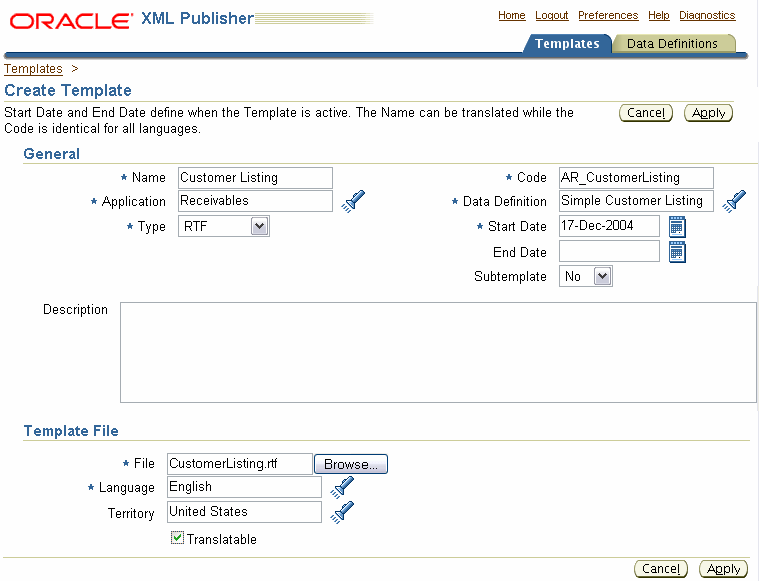
When you create a template, you assign it a data definition and upload your template layout files. Assigning the data definition makes the template available to the corresponding data source at runtime.
At initial creation, you upload one template file for a specific language and territory combination. This file will become the Default Template File (see Default Template File). To upload additional template files or to change the Default Template File, use the View Template page (see Viewing and Updating a Template).
If your template type is PDF, the Template Mapping region will display after you click the Apply button. See Template Mapping.
To navigate to the Create Template page:
Select the Templates tab, then select the Create Template button. To copy an existing template, see Copying a Template.
| Name | Enter a user-friendly name for your template. |
| Code | Assign a template code using the product short name and a descriptive ending. |
| Application | Select the report's Application. |
| Data Definition | Select your report's data definition. The data definition must already exist in the Template Manager. To register the data definition, see Creating the Data Definition. |
| Type | Select the file type of the template. Valid template file types are: eText - Inbound, eText - Outbound, PDF, RTF, XSL-FO, XSL-HTML, XSL-TEXT, and XSL-XML. |
| Start Date | Enter the date from which the template will be active. |
| End Date | To make the template inactive, enter an end date. |
| Subtemplate | If this is a subtemplate, select "Yes" from the drop list. A subtemplate is referenced by other templates, but cannot be run on its own. For example, you may create a subtemplate to contain common content that you want shared across reports so that you do not have to duplicate that content in all the templates. You enter syntax in the primary template to "call" the subtemplate so that at runtime its contents are included in the report. For more information see Using Subtemplates. |
| File | Use the Browse button to upload your template layout file. |
| Language | Select the template language. Add more language template files to your template definition from the View Template page. See Adding Templates for Additional Languages. |
| Territory | Select the language territory. |
| Translatable (check box) | Select this check box if you want this template to be translatable. Only RTF templates are translatable. For more information see Translatable Templates. |
After the template definition is created, the following fields are not updateable: Application, Code, and Type. Update the template from the View Template page.
When you submit the XML Publisher concurrent request, you are prompted to specify the language and territory of the template that you wish to apply to the report data. If you do not select the language and territory, XML Publisher will use a template that corresponds to your session language and territory. If your session language and territory combination do not represent an available template, XML Publisher will use the Default Template to publish the report.
When you create the Template definition in the Template Manager, the original template file you upload becomes the Default Template. You can change the Default Template from the View Template page by choosing Update.
If your template type is PDF, the Template Mapping region displays after you select Apply. If you named the placeholders on the PDF template according to their corresponding XML element names, no mapping is required.
If you did not name the PDF placeholders according to the XML element names (or if you are using a third-party PDF template that already contained named placeholders), you must map each template field name to its corresponding XML element. You must have loaded the XML schema to the template's corresponding Data Definition to make the XML element names available to the Template Manager's mapping tool.
To perform mapping, select the Enable Mapping button to launch the Update Mapping page. See Mapping PDF Template Fields.
For information on creating placeholders in the PDF template, see Creating a Placeholder.