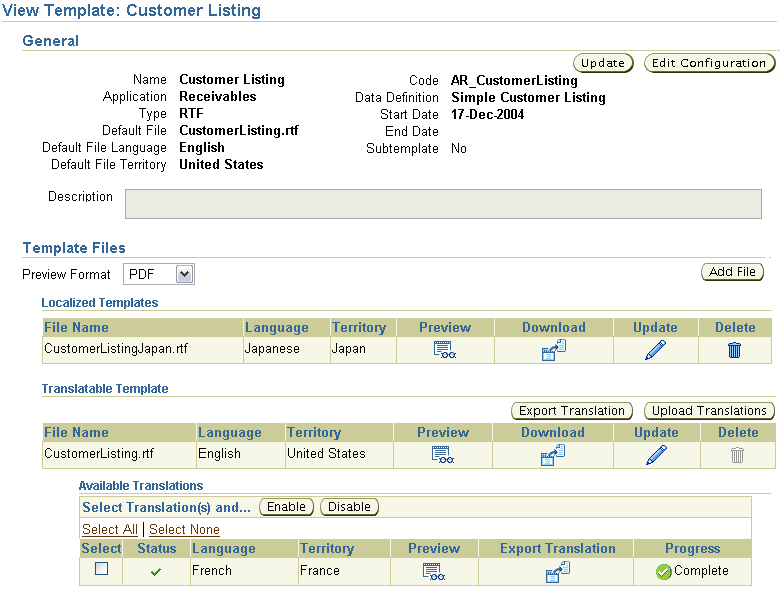
Navigate to the View Template page:
Search for your template from the Templates page.
Select the template Name from the search results region.
From the View Template page, you can:
Export the XLIFF file for translation of translatable templates (RTF templates only)
Enable or Disable available translations (RTF templates only)
Note: Seeded templates cannot be updated or deleted. The Update and Delete icons for these templates are disabled. If you wish to modify a seeded template, Duplicate it, then modify the template file of the duplicated entry. You can then End Date the seeded template if you do not want it to be available to your users.
Select the Update button to update the general definitions of a template. (You cannot update the Template Code, Template Type, or Application.) For information on the updateable fields, see Creating the Template.
If you uploaded a preview data file for your data definition, the Preview feature will merge this data file with the selected template to allow you to immediately view a sample of the report within the Template Manager.
Select the Preview Format and then select the Preview icon next to the template file that you wish to preview. XML Publisher automatically generates a preview of your report in the format selected (PDF templates can only be viewed in PDF format).
To edit the layout file of a template:
Select the Download icon to save the template file to your local file system.
Edit the file using your desktop application and save it in the appropriate format.
For guidelines on creating template files, see Creating an RTF Template or Creating a PDF Template.
Select the Update icon.
The Add File page prompts you to Browse for and select your edited file.
Select the Apply button to upload the edited file to the Template Manager.
After you have created a template definition, you can add translated template files to support additional languages.
Use this feature when your translated template requires a different layout or adjustments to the layout. Otherwise, use the Translatable Template feature, which allows the export and upload of the translatable strings within the template. See Translatable Templates.
Select the Add File button.
Browse for or type in the location of the template file.
Select the Language for this template file from the LOV.
Select the Territory for this template file from the LOV.
Select the Enable Mapping button to map the PDF template fields to the data source fields.
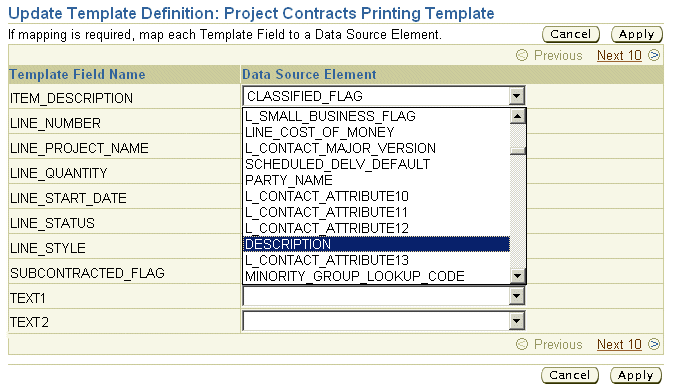
On the Update Mapping page, the Template Field Name column displays the names assigned to the form fields on the PDF template. The Data Source Element column displays a drop down list that contains all the element names from the XML schema you supplied when you created the data definition. Select the appropriate data element from the drop down list for each template field.
Note: Do not map the BODY_START and BODY_END grouping tags.
Once you have mapped the fields, the Update Mapping and Disable Mapping buttons become visible from the View Template page.