The Message Designer is a wizard-guided, repository-based tool used to create XML message maps. Map creation consists of defining the data source and data target, defining hierarchy and data maps between the source and target data, and defining actions for data transformation and process control.
The Message Designer is independent of XML standards. It complies with version 1.0 of the W3C XML specifications.
Note: Information regarding the W3C XML Standards can be found at http://www.w3.org/XML/Activity.
The Message Designer can support map creation for any business document as long as the document conforms to a Document Type Definition (DTD).
The Message Designer can be used to:
Modify the Oracle prebuilt message maps
Create new message maps
If you are using the Message Designer to create new message maps, you must complete a map analysis before attempting to use the Message Designer. Refer to Map Analysis Guidelines for the details. The thoroughness of your map analysis will impact the success of your map creation.
Load completed message maps and associated DTDs into the XML Gateway repository. The XML Gateway Execution Engine and the XML Parser use the maps to create outbound messages and to consume inbound XML messages.
The Message Designer has the following menus: File, View, and Help. Some of the menu functions can also be accessed by toolbar icons.
See: Message Designer Toolbar.
Use the Message Designer to create new data definitions and transaction maps or to modify existing data definitions and transaction maps.
The Message Designer supports the following file types:
XGD for source or target data definitions
XGM for transaction maps
The .XGD and .XGM files are XML files that can be opened and read using a browser or any XML editor. The XGD and XGM files are used to describe the structure and content of a message. The XML message produced or consumed using the transaction map (XGM) contains the actual business data.
The File menu options are listed in the following table:
| Menu Option | Description |
|---|---|
| New | Create a new data definition file or a new transaction map file. |
| Open | Open an existing file. Files can be either data definition files with a XGD extension, or transaction map files with a XGM extension. |
| Close | Close the open transaction map or data definition file. |
| Save | Save an open file. Save the data definition files as XGD files. Save the transaction map files as XGM files. |
| Properties | Provides access to key property values entered using the Data Definition Creation Wizard or Map Creation Wizard. Use this menu option to change any of the original key values presented. See File > Properties Menu Option for more details regarding this menu option. |
| Exit | Exit Message Designer. |
Use the View Menu to view the source or target definitions in tree format only, table format only, or both tree and table formats.
The View menu options are listed in the following table:
| Menu Option | Description |
|---|---|
| Tree | View source or target definition in tree format only. |
| Table | View source or target definition in table format only. |
| View Both | View source or target definition in both tree and table formats. This is the default viewing option. |
The Help menu options are listed in the following table:
| Menu Option | Description |
|---|---|
| Help Topics | Displays Message Designer help. |
| About | Displays the Message Designer version. |
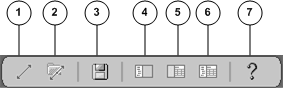
The Message Designer toolbar uses the following icons to duplicate the noted menu options:
Create New Map icon. Invokes the Map Creation Wizard.
Open Map icon. Opens an existing map.
Save Map Icon. Saves the data definition as a XGD file. Saves the transaction map as a XGM file.
View Tree icon. Displays the tree format only.
View Table icon. Displays the table format only.
View Both Tree and Table icon. Displays both the tree and table formats.
Help icon. Invokes Message Designer Help.

The Add Sibling Button adds a new element at the same hierarchy level as the selected item on the map.
For additional information on this function, see the following:
For Source Data Definitions see (Source Definition Tab) Add Sibling.
For Target Data Definitions see (Target Definition Tab) Add Sibling.

The Add Child button adds a new element at a lower hierarchy level than the selected item on the map.
For additional information on this function, see the following:
For Source Data Definitions see (Source Definition Tab) Add Child.
For Target Data Definitions see (Target Definition Tab) Add Child.

The Delete button deletes any element that has not been mapped. Be careful not to delete required data elements. Deleting required elements will cause a parser violation.
If an item has child elements associated with it, a warning is displayed before the delete occurs.
Attention: If you are deleting any DTD extensions, be sure to remove the DTD extensions from the corresponding extension file created for the application or user. The extra information will not cause a parser violation, but it is a good practice to ensure the extension files match the message maps. Refer to How to Extend DTDs for the details.
The File > Properties menu option provides access to key property values entered using the Data Definition Creation Wizard or the Map Creation Wizard. Use the Properties window to change any of the key property values presented.
The Property Tabs and fields associated with each Tab vary depending on where the File > Properties menu option is invoked. The options available from each window are:
Main Message Designer - General Tab, Database Tab
Data Definition Window - General Tab, Database Tab, Data Tab
Transaction Map Window- General Tab, Database Tab, Map Tab, Source Tab, Target Tab
The General Tab allows you to update the Output Directory. This is the default directory used to store the data definition and message map files created using the Message Designer.
| Output Directory | Use the Browse button to select a default directory or enter a valid directory name. |
Use the Database Tab to provide the default database connection information. The default values will be provided to the Data Definition and Map Creation Wizards as well as to the Procedure Call action.
The database connection fields prompted for are:
Username
Connect to Database
Host
Port
Schema Name
The Data Tab allows you to update data values originally entered using the Data Definition Creation Wizard. The fields on the tab vary depending on the type of data definition.
The fields in the following table display for all data definitions:
| Field | Description |
|---|---|
| Data Definition Name | Update the name entered. Observe the naming conventions recommended in the Data Definition and Map Creation Wizards. See Select/Create a Source/Target Data Definition Name and Type for the naming convention details. |
| Data Definition Description | Update the description. |
Attention: If the data definition changes affect any existing maps, the maps must be changed and reloaded. If the DTD reference is changed, the new DTD must be reloaded. Refer to How to Load/Delete Message Maps and DTDs.
The fields in the following table display when the data definition type is XML:
| Field | Description |
|---|---|
| Root Element | Update the Root Element entered. The root element entered must match the root element of the DTD entered below. |
| Runtime DTD Location | Update the Runtime DTD Location with the new subdirectory name. Observe the naming conventions recommended in the Data Definition and Map Creation Wizards. See Identify the Runtime Location of a DTD for naming convention details. |
| DTD File Name | Use the Browse button to select a DTD or enter a valid DTD file name. This will replace the file name originally entered. The root element defined in the DTD must match the root element value entered above. |
Attention: Changes to any of these property values require the message map to be reloaded. Changing the DTD associated with the message map requires the DTD to be reloaded. Refer to How to Load/Delete Message Maps and DTDs for details.
This tab displays only if you are viewing a map transaction file (.XGM).
| Field | Description |
|---|---|
| Map Name | Update the name entered. Observe the naming conventions recommended in the Map Creation Wizard. See Specify a Map Name for details. |
| Map Description | Update the description. |
Attention: If the map name change affects any existing Trading Partner definitions, update the Trading Partner definition with the new map name.
Attention: The map containing the new name must be reloaded into the XML Gateway repository. Refer to How to Load/Delete Message Maps and DTDs for the details.
The fields in the following table display for all data definitions:
| Field | Description |
|---|---|
| Data Definition Name | Update the name entered. Observe the naming conventions recommended in the Data Definition and Map Creation Wizards. See Specify Source/Target Data Definition Name and Type for naming convention details. |
| Data Definition Description | Update the description. |
Attention: If the data definition changes affect any existing maps, the maps must be changed and reloaded. If the DTD reference is changed, the new DTD must be reloaded. Refer to How to Load/Delete Message Maps and DTDs.
The fields in the following table display when the data definition type is XML:
| Field | Description |
|---|---|
| Root Element | Update the Root Element entered. The root element entered must match the root element of the DTD entered below. |
| Runtime DTD Location | Update the Runtime DTD Location with the new subdirectory name. Observe the naming conventions recommended in the Data Definition and Map Creation Wizards. See Identify the Runtime Location of a DTD for naming convention details. |
| DTD File Name | Use the Browse button to select a DTD or enter a valid DTD file name. This will replace the file name originally entered. The root element defined in the DTD must match the root element value entered above. |
Attention: Changes to any of these property values require the message map to be reloaded. Changing the DTD associated with the message map requires the DTD to be reloaded. Refer to How to Load/Delete Message Maps and DTDs for details.
The fields in the following table display for all data definitions:
| Field | Description |
|---|---|
| Data Definition Name | Update the name entered. Observe the naming conventions recommended in the Data Definition and Map Creation Wizards. See Specify Source/Target Data Definition Name and Type for naming convention details. |
| Data Definition Description | Update the description. |
Attention: If the data definition changes affect any existing maps, the maps must be changed and reloaded. If the DTD reference is changed, the new DTD must be reloaded. Refer to How to Load/Delete Message Maps and DTDs.
The fields in the following table display when the data definition type is XML:
| Field | Description |
|---|---|
| Root Element | Update the Root Element entered. The root element entered must match the root element of the DTD entered below. |
| Runtime DTD Location | Update the Runtime DTD Location with the new subdirectory name. Observe the naming conventions recommended in the Data Definition and Map Creation Wizards. See Identify the Runtime Location of a DTD for naming convention details. |
| DTD File Name | Use the Browse button to select a DTD or enter a valid DTD file name. This will replace the file name originally entered. The root element defined in the DTD must match the root element value entered above. |
Attention: Changes to any of these property values require the message map to be reloaded. Changing the DTD associated with the message map requires the DTD to be reloaded. Refer to How to Load/Delete Message Maps and DTDs for details.