 Managing Notification Mailers:
A notification mailer is a Java program that performs e-mail send and response processing for the Oracle Workflow Notification System, using the JavaMail API. You need to implement one or more notification mailers only if you want to have your workflow users receive their notifications by e-mail, as well as from the Worklist Web pages.
See: Reviewing Notifications via Electronic Mail.
Managing Notification Mailers:The notification mailer program is defined as a service component type in the Generic Service Component Framework. This framework helps to simplify and automate the management of background Java services. For more information about managing service components, see: Service Components.
Oracle Workflow provides one seeded notification mailer service component, called Workflow Notification Mailer. Most of the configuration parameters for this mailer are set to default values. You can enter several of the remaining required parameters using AutoConfig. After installation, you then only need to enter the e-mail inbox password to complete the configuration of the Workflow Notification Mailer. Alternatively, if you only want to send outbound messages and do not need to receive inbound messages, you only need to disable inbound processing to complete the configuration of the Workflow Notification Mailer.
If the mail servers and Business Event System components used by notification mailers are set up, and the service component container to which the Workflow Notification Mailer belongs is started, the seeded notification mailer automatically starts running once its configuration is complete.
You cannot delete the seeded Workflow Notification Mailer or edit its name, assigned agents, correlation ID value, or container. However, if necessary you can optionally update other configuration parameters, schedule control events, or manually choose control commands to start, stop, suspend, resume, or refresh this notification mailer.
Note: Oracle Alert also uses the Workflow Notification Mailer to send and receive alert e-mail messages. If you use Oracle Alert, ensure that the configuration of the Workflow Notification Mailer meets your alert requirements. See: Setup Steps.
You can also optionally create additional notification mailer service components. For example, you can create a notification mailer that processes only messages that belong to a particular workflow item type, or only instances of a particular message from a particular item type. You can create additional mailers that process the same types of message to increase throughput.
You can also configure any notification mailer service component to process only inbound messages, or only outbound messages. You associate inbound and outbound mailers with each other by assigning them the same mailer node name. The mailer node name indicates which inbound mailer can process incoming responses to outbound messages sent by a particular outbound mailer.
You can optionally assign the same node name to multiple mailers for load balancing purposes. However, each mailer that performs inbound processing for a node must have its own inbox.
If you enable both outbound and inbound processing for the same mailer, that mailer will automatically use the same node name for both types of processing, enabling it to process incoming responses to the outbound messages it sent. You can optionally also create other notification mailers that share the same node name.
If you create an outbound-only mailer, but you still want to perform response processing for e-mail responses to the outbound messages it sends, you should create at least one other mailer with the same node name that does perform inbound message processing. Otherwise, there will be no inbound mailer that can process incoming responses to outbound messages sent by this outbound mailer.
If you only want to implement outbound message processing, without inbound e-mail response processing, then you can configure an outbound-only mailer without creating a corresponding inbound mailer. In this case you should configure the mailer to use message templates for response-required notifications that do not request a response by e-mail, but instead direct recipients to respond from the Notification Details Web page. For example, you can configure the mailer to send response-required notifications using the Workflow View From UI message template, which is an alternative template provided by Oracle Workflow in the System: Mailer item type, or create your own custom message templates. The outbound-only mailer can still use the standard message templates to send outbound summary notifications or For Your Information (FYI) notifications that do not require a response.
Create an inbound-only mailer only if you have also created at least one mailer with the same node name that performs outbound message processing. If no outbound mailer shares the same node name, no incoming response messages will be marked with that node name, and the inbound-only mailer will have no messages to process.
Note: The node name for each node must be unique. However, multiple mailers can share the same node. The maximum length for a node name is eight characters, and the node name cannot include any spaces or any of the following characters: left bracket ([), right bracket (]), slash (/), or at sign (@).
Service components must be hosted by a service component container. If you create custom notification mailer service components, you can assign them to the seeded container for notification mailers.
A service component container is implemented as a Generic Service Management (GSM) service. The seeded container for notification mailers is named Workflow Mailer Service.
Based on the volume to be handled by the seeded container, you can also choose to create your own custom containers as GSM services in Oracle Applications Manager. If you create a custom GSM service in OAM, you can copy the service parameters from the seeded Workflow Mailer Service to your new service in order to specify how to run the new service.
Setting Up Notification Mailers:Currently, Oracle Workflow supports the Simple Mail Transfer Protocol (SMTP) for outbound messages and the Internet Message Access Protocol (IMAP) for inbound messages. You must have an SMTP server set up in order to send Oracle Workflow notification e-mail messages, and an IMAP server set up if you want to receive e-mail notification responses. Users can receive e-mail notifications using various e-mail clients, although notifications may be displayed differently in different clients, depending on the features each client supports.
Note: Oracle Workflow supports IMAP version 4 (IMAP4) compliant mail servers. Ensure that your mail server uses this IMAP version.
Use the Oracle Workflow Manager component of Oracle Applications Manager (OAM) to configure and run notification mailers. For more information, see: Notification Mailers.
To set up a notification mailer, you must perform the following steps.
To Set Up a Notification Mailer
Set up an SMTP mail server to send outbound messages.
You can optionally configure the SMTP server to require authentication for server connections through the Simple Authentication and Security Layer (SASL). The Oracle Workflow notification mailer supports the PLAIN, LOGIN, and DIGEST-MD5 authentication mechanisms. Additionally, if you have applied patch 9452181 for JavaMail version 1.4.x, then the notification mailer can also support the Microsoft NTLM authentication mechanism. If you configure your SMTP server to use one of these authentication mechanisms, set up a user name and password for the notification mailer to use in establishing an authenticated connection to the server.
If you configure your SMTP server to support more than one authentication mechanism, then the notification mailer uses the mechanism that appears first in the server's list of supported mechanisms. Consequently, if you want the notification mailer to use a particular mechanism, ensure that that mechanism appears first in the server's list. At a minimum, you should ensure that the first authentication mechanism listed for the server is one that the notification mailer supports.
Note: If you use the PLAIN or LOGIN authentication mechanisms, it is recommended to connect to the SMTP server through TLS or SSL to encrypt the user name and password that are sent to the server. See: Connecting to Mail Servers Through TLS or SSL. If you use the DIGEST-MD5 or NTLM authentication mechanisms, the JavaMail API encrypts the user name and password before sending the data to the SMTP sever.
Set up an IMAP4 compliant mail server with an e-mail account for the notification mailer if you want to receive inbound messages.
The notification mailer requires three folders in this e-mail account: the inbox, a folder to store processed messages, and a folder to store discarded messages.
If the e-mail account does not already include folders named PROCESS and DISCARD, Oracle Workflow automatically creates these two folders when you complete the basic notification mailer configuration. You can optionally specify other folders for the notification mailer using the advanced configuration wizard.
Note: Use your e-mail client to create folders manually for the notification mailer to use. A notification mailer may not be able to access folders that were created using command line tools outside the e-mail client.
However, note that you must not use an e-mail client to access the notification mailer's e-mail account while the notification mailer is running. Use the e-mail client only during setup.
You can enter the following configuration parameters for the seeded Workflow Notification Mailer service component during installation using AutoConfig. For more information about running AutoConfig, see: Technical Configuration, Oracle E-Business Suite Setup Guide, and Technical Configuration Tools, Oracle E-Business Suite Concepts.
SMTP server
IMAP server (if you want to receive inbound messages)
Inbox username (if you want to receive inbound messages)
Reply to e-mail address (if you want to receive inbound messages)
HTML agent name (defaults to the value you enter for the Applications Servlet Agent parameter)
Note: When you enter the SMTP Server and IMAP Server parameters, specify each server in the following format:
<server_name>[:<port_number>]
For the IMAP Server parameter, specify the actual host name. Do not use localhost as the setting for this parameter.
For the SMTP Server parameter, Oracle strongly recommends that you specify the actual host name. However, you can specify localhost as the setting for the SMTP Server parameter if you ensure that an SMTP server is configured to send e-mails to all valid domains on each host where concurrent managers run. If you have implemented Parallel Concurrent Processing to allow concurrent processing activities to be distributed across multiple nodes in a cluster system, then you must configure an SMTP server on every node. Otherwise, if a concurrent manager attempts to execute outbound notification mailer processing on a node without an SMTP server, the processing will fail.
You can optionally specify the port number to use on each server. If you do not specify a port number, the notification mailer uses port 143 on the IMAP server and port 25 on the SMTP server by default.
Ensure that the Business Event System status is set to Enabled in the global workflow preferences, and that the JOB_QUEUE_PROCESSES database initialization parameter, which is required for the Business Event System, is set to an appropriate value. The Business Event System status is set to Enabled by default, and usually you do not need to change this status. If notification processing is not being completed, however, you should check this preference value.
(Recommended) You can optionally set the WF: Workflow Mailer Framework Web Agent profile option to the host and port of the Web server that notification mailers should use to generate the content for Oracle Application Framework regions that are embedded in notifications. If this profile option is not set, notification mailers will use the same Web agent specified in the Application Framework Agent profile option. However, on a load-balanced Web server, notification mailers might not be able to render Oracle Application Framework content within a notification. In this case, set the WF: Workflow Mailer Framework Web Agent profile option to a physical host, instead of a virtual host. The WF: Workflow Mailer Framework Web Agent profile option should be set at site level. See: Overview of Setting User Profiles.
(Optional) If your Oracle E-Business Suite instance is set up in a DMZ configuration, you can optionally configure links for the Notification Detail Link attachment in e-mail notifications to be generated using the external web entry point for users whom you designate as external users. In this way external users without access to your intranet, such as suppliers, can access these links to Oracle E-Business Suite content from workflow notifications.
To designate users as external users, assign them the role WF_EXTERNAL_ROLE. See: Create Grant.
Note: Some Oracle E-Business Suite applications assign the role WF_EXTERNAL_ROLE to certain users as part of their configuration. For more information, see your product-specific documentation.
To specify the external web entry point that the notification mailer should use to generate the links, set the FND Framework External Agent profile option. See: Overview of Setting User Profiles, Oracle E-Business Suite Setup Guide.
When a notification is sent to a recipient with the role WF_EXTERNAL_ROLE, the notification mailer uses the external agent specified in the FND Framework External Agent profile option to generate the link for the Notification Detail Link attachment. However, if no value is set in the FND Framework External Agent profile option, then the notification mailer uses the default Web agent specified in the Application Framework Agent profile option.
For more information about DMZ configurations, see: Oracle E-Business Suite Release 12.2 Configuration in a DMZ, My Oracle Support Document 1375670.1.
Before a service component can run, the container which manages it must first be started. The seeded Workflow Notification Mailer service component belongs to a container named Workflow Mailer Service. The seeded agent listener service components that are also required for notification mailer processing belong to a container named Workflow Agent Listener Service . You should ensure that these two containers are running, using Oracle Applications Manager. If you create your own custom containers in OAM for custom service components, ensure that those containers are running as well.
Note: You can run a diagnostic test to verify the GSM services for Oracle Workflow. See: Oracle Workflow Diagnostic Tests.
When the Workflow Agent Listener Service or WFALSNRSVC container is running, it automatically starts seeded agent listener service components named Workflow Deferred Notification Agent Listener, Workflow Error Agent Listener, and Workflow Inbound Notifications Agent Listener, which are required for notification mailer processing. Ensure that these agent listeners are running.
Use the notification mailer configuration wizard to configure your notification mailer service component.
Note: The Basic Configuration page lets you configure a notification mailer quickly by entering only the minimum required parameters, while the advanced configuration wizard lets you specify additional parameters to control how the notification mailer processes messages. See: Notification Mailer Configuration Wizard.
If you entered configuration parameters for the seeded Workflow Notification Mailer in AutoConfig, you only need to enter the password for the e-mail inbox in order to complete the configuration for that mailer and begin running it.
If you did not enter parameters for the seeded mailer during installation, then in order to complete the configuration for that mailer you need to enter only the SMTP server, IMAP server, e-mail inbox username, e-mail inbox password, and reply-to e-mail address. All other configuration parameters for the seeded Workflow Notification Mailer are initially set to default values and do not need to be changed, although you can optionally do so if you choose.
Note: The IMAP server, e-mail inbox username, e-mail inbox password, and reply-to e-mail address are required only if you want to receive inbound messages. Alternatively, if you only want to send outbound messages and do not need to receive inbound messages, you only need to disable inbound processing in order to complete the configuration of the Workflow Notification Mailer. To do so, deselect the Inbound Processing parameter in the Basic Configuration page.
(Optional) By default, the seeded Workflow Notification Mailer has a Launch Summary Notifications event scheduled to send summary notifications once a day. You can optionally use the notification mailer configuration wizard to modify the start time and interval for this event's schedule, or to schedule the Launch Summary Notifications event at the interval you choose for any notification mailer service component. When this event is processed, a summary notification is sent to each role with a notification preference of SUMMARY or SUMHTML, listing all the notifications that are currently open for that role.
(Optional) You can optionally configure a notification mailer to connect to the SMTP server and IMAP server through Transport Layer Security (TLS) or Secure Sockets Layer (SSL) to encrypt the data exchanged. See: Connecting to Mail Servers Through TLS or SSL.
(Optional) You can optionally set the internal mailer parameter named HTML_DELIMITER to specify which characters the notification mailer uses to delimit response values in response templates for HTML-formatted e-mail notifications. Valid values for the HTML_DELIMITER parameter are:
DEFAULT - The notification mailer uses the default delimiters, currently set as the single quote (') for both the opening and the closing delimiter. The notification mailer also uses the default delimiters if the HTML_DELIMITER parameter value is left null.
APOS - The notification mailer uses the single quote, or apostrophe (') , as both the opening and the closing delimiter. This setting is currently the same as the default.
QUOTE - The notification mailer uses the double quote (") as both the opening and the closing delimiter.
BRACKET - The notification mailer uses the left bracket ([) as the opening delimiter and the right bracket (]) as the closing delimiter.
Using single quotes as the delimiters accommodates e-mail applications that cannot process double quotes in the <A HREF="mailto:"> tag for the response template link, but can accept single quotes. However, if you want users to be able to use apostrophes or single quotes in their response values without entering an escape character, you can use double quotes or brackets as the delimiters, depending on what your e-mail application supports. For example, Microsoft Outlook Express does not support using double quotes, so if you use Microsoft Outlook Express, you can set the HTML_DELIMITER parameter to DEFAULT, APOS, or BRACKET, but you should not set this parameter to QUOTE. See: To Respond to an HTML E-mail Notification.
Note: If the HTML_DELIMITER parameter is set to an invalid value, the notification mailer throws an exception at startup. Any notifications created during this time are rendered with the default delimiters instead.
By default, the HTML_DELIMITER parameter is set to the value DEFAULT. Use the afsvcpup.sql script to change the parameter value to specify the delimiters you want to use. See: To Set Internal Mailer Parameters.
If a particular notification message has the special #WFM_HTML_DELIMITER message attribute defined, however, the notification mailer will use the #WFM_HTML_DELIMITER attribute value to determine which delimiters to use for that notification, instead of using the HTML_DELIMITER parameter value.
Note: The HTML_DELIMITER parameter only controls the response templates for HTML-formatted notifications. This parameter does not apply to plain text notifications.
(Optional) The seeded Workflow Notification Mailer uses the Automatic startup mode by default and will be started automatically when you complete its configuration. If you select the Manual startup mode for a notification mailer service component, use the Service Components page in Oracle Workflow Manager to start that notification mailer. You can also use this page to manage any notification mailer service component.
To Set Internal Mailer Parameters
Use the afsvcpup.sql script to set internal mailer parameters that do not appear in the notification mailer configuration wizard. This script is located in the $FND_TOP/sql directory.
Use the following command to run the afsvcpup.sql script:
sqlplus <user> @afsvcpup
Enter password: <password>
At the prompts, enter the component ID for your notification mailer service component, the parameter ID for the parameter to set, and the value to assign to that parameter. You can find the IDs to enter in the lists displayed by the script, which show first the service components defined in your installation of Oracle Workflow and then the parameters defined for the specified service component. You can also find the component ID for a notification mailer in the Define page of the configuration wizard.
Outbound Notification Mailer Processing:When the Workflow Engine determines that a notification message must be sent, it raises an event in the Business Event System called oracle.apps.wf.notification.send. Oracle Workflow provides a seeded subscription to this event, which is defined to be deferred immediately so that the workflow process that owns the notification can continue. The event is placed on the standard WF_DEFERRED agent. Oracle Workflow provides a seeded agent listener named Workflow Deferred Notification Agent Listener that runs on this agent to continue notification processing. This agent listener is dedicated solely to processing deferred notification events.
When the event is dequeued from WF_DEFERRED and the subscription is processed, the subscription requires the event data for the event, causing the generate function for the event to be executed. The generate function for this event performs the following actions:
Resolves the notification recipient role to one or more e-mail addresses defined for the role; an e-mail address can itself be a mail list.
Checks the notification preference of the recipient to determine whether an e-mail notification is required, and in what type of format.
Switches its database session to the recipient role's preferred language and territory as defined in the directory service.
Generates an XML representation of the notification message and any optional attachments using the appropriate message template.
Finally, the subscription places the event message on the standard WF_NOTIFICATION_OUT agent.
A notification mailer service component polls the WF_NOTIFICATION_OUT agent for messages that must be sent by e-mail. When the notification mailer dequeues a message from this agent, it uses a Java-based notification formatter to convert the XML representation of the notification into a MIME (Multi-purpose Internet Mail Extensions) encoded message and sends the message by the Simple Mail Transfer Protocol (SMTP).
Outbound Notification Mailer Processing
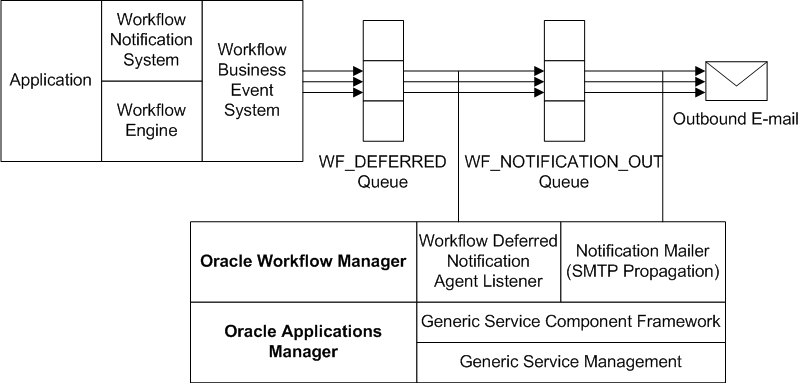
The e-mail notifications are based on message templates defined in Oracle Workflow Builder. Oracle Workflow provides a set of standard templates in the System: Mailer item type, which are used by default. It is not recommended to modify the standard templates. However, you can customize the message templates used to send your e-mail notifications by creating your own custom message templates in a custom item type using the Workflow Builder. Then assign these templates to a particular notification in a workflow process by defining special message attributes. In this case the templates assigned to the notification override any other templates. See: Modifying Your Message Templates and Notification Mailer Message Template Attributes.
You can also create your own custom message templates in the System: Mailer item type using the Workflow Builder, and assign these templates to a particular notification mailer service component in the mailer configuration parameters. The templates assigned to a mailer override the default System: Mailer templates. However, if any notifications have templates specifically assigned to them through message attributes, the notification-level templates still override the templates assigned to the mailer. See: Modifying Your Message Templates.
If the notification mailer cannot deliver an e-mail notification to one or more of the recipient's e-mail addresses, it performs the following actions:
Sets the mail status of the notification to SENT if the e-mail was delivered successfully to at least one e-mail address for the recipient.
Sets the mail status of the notification to FAILED if the e-mail could not be delivered to any e-mail address defined for the recipient. This mail status indicates that an exception prevented this e-mail notification from being delivered but does not prevent the mailer from processing other notifications.
Adds the e-mail address or addresses to its invalid e-mail address list. To avoid unnecessary processing, each notification mailer stores a list of e-mail addresses to which it could not deliver messages, and does not attempt to send any further messages to those addresses. If all the addresses for a recipient are invalid, then for any subsequent notifications to the listed addresses, the notification mailer simply sets the mail status directly to FAILED. If at least one address for the recipient was valid, then the notification mailer continues sending notifications to the valid address or addresses, but does not attempt to send any further messages to the invalid addresses.
Note: Each notification mailer can store up to 100 e-mail addresses in its invalid e-mail address list. If the notification mailer encounters additional invalid addresses when the list is already full, the notification mailer removes the oldest addresses from the list and adds the new addresses in their place. Also, the notification mailer clears the list by removing all addresses whenever you stop and restart the mailer.
Changes the notification preference of the recipient to DISABLED, if all the e-mail addresses for the recipient are invalid. To further help avoid unnecessary processing, if a recipient has a notification preference of DISABLED, Oracle Workflow does not generate a complete XML representation of any notifications to that recipient, and a notification mailer does not attempt to send e-mail notifications to that recipient. Instead, the notification mailer simply sets the mail status of the notifications directly to FAILED. The change in notification preference also indicates to the user that e-mail notifications cannot be delivered. You or the user must correct the issue that caused the failure and then reset the notification preference in order for the user to receive e-mail notifications.
If at least one e-mail address for the recipient was valid, then the notification preference of the recipient is not changed. In this case the notification mailer continues sending notifications to the valid address or addresses, but does not attempt to send any further messages to the invalid addresses.
Sends a notification to the SYSADMIN user. If all the e-mail addresses for a recipient are invalid, this notification informs the administrator that an e-mail notification could not be sent to one or more recipients, that the notification preference for those recipients has been set to DISABLED, and that those recipients' original notification preferences, which are listed, should be reset after the issues that caused the failures are corrected. See: User Notification Preference Update Report Message.
If at least one e-mail address for the recipient was valid, then this notification informs the administrator that an e-mail notification could not be sent to one or more e-mail addresses for the recipient, that those addresses should be either corrected or removed from the list of e-mail addresses defined for the recipient, and that Oracle Workflow will not attempt to send any further notifications to these addresses until the notification mailer is restarted. See: Invalid Email Address Warning Message Template.
Individual users whose notification preference was set to DISABLED can reset their notification preference manually using the Preferences page in Oracle E-Business Suite. You can also run the Workflow Directory Services Bulk Reset DISABLED Notification Preference concurrent program to reset the notification preference for multiple users at once. See: Handling Mailer Errors.
After correcting the e-mail issues and resetting DISABLED notification preferences, you can run the Resend Failed/Error Workflow Notifications concurrent program to retry open notifications that previously could not be sent. See: Handling Mailer Errors.
Inbound Notification Mailer Processing:Notification mailers can also process e-mail responses from users, using the Internet Message Access Protocol (IMAP). A notification mailer uses a Java-based e-mail parser to interpret the text of each message and create an XML representation of it.
A notification mailer uses three folders in your response mail account for response processing: one to receive incoming messages, one to store processed messages, and one to store discarded messages.
A notification mailer does the following to process response messages:
Logs into its IMAP e-mail account.
Checks the inbox folder for messages. If a message exists, the notification mailer reads the message, checking for the notification ID (NID) and node identifier in the NID line.
If the message is not a notification response, meaning it does not contain an NID line, the notification mailer moves the message to the discard folder and treats it as an unsolicited message. For the first unsolicited message from a particular e-mail address, the notification mailer also sends a warning message back to the sender of the message.
However, to avoid sending unnecessary warnings due to bounced or auto-reply messages, each mailer node stores a list of e-mail addresses from which it has received unsolicited mail, and does not send any further warning messages to those addresses. Instead, if the node receives a second unsolicited message from a particular address, the notification mailer discards the message and raises the oracle.apps.wf.mailer.unsolicited event. You can optionally define a subscription to this event if you want to perform some other action in response to the second unsolicited message. For all subsequent unsolicited messages, the notification mailer simply discards the message.
Note: Each mailer node can store up to 100 e-mail addresses in its warned list. If the node receives unsolicited messages from additional addresses when the list is already full, the notification mailer removes the oldest addresses from the list and adds the new addresses in their place. Also, the notification mailer clears the list by removing all addresses when you start the mailer for the first time, and again whenever you stop and restart its container. In these cases, the mailer may send another warning message if it receives further unsolicited e-mail from an address that is no longer on the warned list.
Note: You can optionally use the Send Warning for Unsolicited E-mail mailer parameter to prevent notification mailers from sending any warning messages at all. See: Notification Mailer Configuration Wizard.
If the message is a notification response, but for a different node, the notification mailer leaves the message in the inbox and adds the e-mail's Unique Message ID (UID) to its ignore list.
If the message is a notification response for the current node, meaning it contains an NID line including the node identifier of the current node, the notification mailer processes the message.
The notification mailer performs the following steps for messages that belong to its node.
Retrieves the notification ID.
Checks to see if the message bounced by referring to the tags specified in the configuration parameters, if any. If the message bounced, the notification mailer updates the notification's status and stops any further processing, based on the specifications of the tag list.
Checks the Oracle Workflow database for this notification based on the NID line.
If the notification does not exist, meaning the notification ID or the access key in the NID line is invalid, the notification mailer moves the message to the discard folder. If the NID line is incorrectly formatted, the notification mailer moves the message to the discard folder and and treats it as an unsolicited message.
If the notification exists, but is closed or canceled, the notification mailer moves the message to the processed folder and sends a Workflow Closed Mail or Workflow Canceled Mail message to the recipient role, respectively.
Note: You can optionally use the Send E-mails for Canceled Notifications mailer parameter to prevent notification mailers from sending any notification cancellation messages. See: Notification Mailer Configuration Wizard.
If the inbound message is a response to a request for more information that has already been answered, or if the message is formatted as a more information response but no information was requested for that notification, then the notification mailer moves the message to the discard folder and sends a Workflow More Info Answered Mail message to the sender of the message.
If the notification exists and is open, the notification mailer generates an XML representation of the message and places it on the standard WF_NOTIFICATION_IN agent as an event called oracle.apps.wf.notification.receive.message. The notification mailer then moves the e-mail message to the processed folder.
Note: If the character encoding of the response message is not compatible with the database codeset, the notification mailer may not be able to parse the response and recognize the response values. Ensure that the character encoding of messages in your mail client is compatible with the codeset of your database.
Finally, if there are no more unprocessed messages in the inbox, the notification mailer logs out of the e-mail account.
Oracle Workflow provides a seeded agent listener named Workflow Inbound Notifications Agent Listener that runs on the WF_NOTIFICATION_IN agent to continue notification processing for the valid response messages placed on that agent. When an event message is dequeued from WF_NOTIFICATION_IN, Oracle Workflow executes a seeded subscription that calls the appropriate notification response function. This function verifies the response values with the definition of the notification message's response attributes in the database. If a response value is invalid, or if no response value is included, the notification mailer sends a Workflow Invalid Mail message to the recipient role, or, for an invalid response to a request for more information, the notification mailer sends a Workflow Invalid Open Mail (More Information Request) message to the recipient role. If the responses are valid, the notification response function records the response and completes the notification.
Inbound Notification Mailer Processing
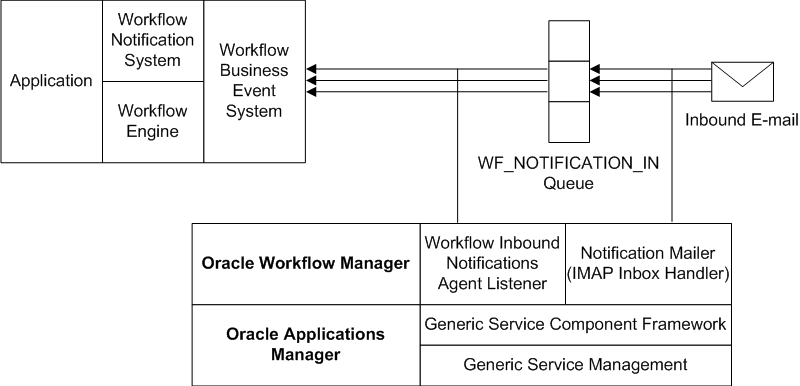
See: Workflow Warning Mail Message, Workflow Closed Mail Message, Workflow Canceled Mail Message, Workflow More Info Answered Mail Message, Workflow Invalid Mail Message, and Workflow Invalid Open Mail (More Information Request) Message.
Full MIME Support:Oracle Workflow fully supports MIME (Multi-purpose Internet Mail Extensions) encoded messages. This means that notification mailers can exchange messages with workflow users containing languages with different character sets and multi-media encoded content.
Connecting to Mail Servers Through TLS or SSL:You can optionally configure a notification mailer to connect to the SMTP server and IMAP server through the Transport Layer Security (TLS) protocol or the Secure Sockets Layer (SSL) protocol. TLS and SSL provide encrypted connections for sending data between the notification mailer and the mail servers, for enhanced security.
To use TLS or SSL, you must have an X.509 certificate and private key issued by a certificate authority. You can use the same certificate for both the SMTP server and the IMAP server.
Note: If you will use this certificate solely for testing purposes or to secure communications within your own enterprise, you can set up your own certificate authority to issue the certificate. However, to secure communications with third parties, you must obtain a certificate from a publicly recognized certificate authority.
If your SMTP server does not support TLS or SSL natively, then you must have Stunnel installed on the SMTP server to connect through TLS or SSL. Stunnel is a program that lets you encrypt connections inside TLS or SSL. For more information, see: https://www.stunnel.org/.
To Set Up for TLS or SSL Connections to the SMTP Server
Obtain an X.509 certificate and private key from a certificate authority, and load the file containing the certificate and key onto the file system of the SMTP server. For detailed instructions, please refer to the documentation for your SMTP server.
(Conditionally Required) If you are using Stunnel, start an Stunnel process on the SMTP server, specifying the location of the certificate file in the arguments.
For example, if the certificate file is named imapd.pem and is located in the /usr/share/ssl/certs/ directory on the SMTP server, use the following Stunnel command to redirect TLS or SSL connections from port 465 to port 25 on the SMTP server.
stunnel -d 465 -r 25 -o /tmp/stunnel.log -p /usr/share/ssl/certs/imapd.pem
For more information, see the Stunnel documentation.
In the notification mailer configuration wizard, set the outbound Connection Security parameter to enable the notification mailer to use a secure protocol for connections to the SMTP server. Choose SSL/TLS to use TLS or SSL directly or STARTTLS to upgrade to an encrypted TLS or SSL connection using STARTTLS. See: Notification Mailer Configuration Wizard.
Note: If you choose SSL/TLS, then the notification mailer connects to the SMTP server through port 465 by default. If you choose STARTTLS, then the notification mailer connects to the SMTP server through port 587 by default. You can optionally specify a different port number along with the SMTP server name in the Outbound E-mail Account: Server Name parameter in the notification mailer configuration wizard.
(Conditionally Required) If you set up your own certificate authority to issue the certificate as a self-signed certificate, then you must also load the local certificate authority's certificate (CA certificate) into a local trust store.
If possible, load the CA certificate into the default local trust store on the concurrent manager host (the trust store for the concurrent manager JDK) where the notification mailer resides.
If the concurrent processing tier and Web tier are on different nodes, then you must import the CA certificate into the default local trust store on each Web tier node as well.
Otherwise, load the CA certificate to an alternate trust store, and specify the location of that trust store in the internal mailer parameter named MAILER_SSL_TRUSTSTORE. You can use the keytool command line utility to create the local trust store.
Note: Creating a local, dedicated trust store for self-signed certificates keeps the JDK trust store clean of any certificates created for testing and verification purposes.
By default, the MAILER_SSL_TRUSTSTORE parameter is set to NONE, which causes the notification mailer to use the default Java security configuration. Use the afsvcpup.sql script to change the parameter value to the location of the alternate trust store. See: To Set Internal Mailer Parameters.
If you are using an alternate trust store location and the concurrent processing tier and Web tier are on different nodes, then you must create the same directory structure for the alternate trust store on each Web tier node as on the concurrent processing tier, matching the value specified in the MAILER_SSL_TRUSTSTORE parameter. Then load the CA certificate to that alternate trust store location on each Web tier node as well.
For example, if you set the MAILER_SSL_TRUSTSTORE parameter to '/apps/applmgr/.keystore' to point to an alternate trust store location on the concurrent processing tier, then you must also create the directory structure '/apps/applmgr/.keystore' on each Web tier node and import the certificate there.
To Set Up for TLS or SSL Connections to the IMAP Server
If the IMAP server is located on a different host than the SMTP server, load the file containing the X.509 certificate and private key onto the file system of the IMAP server. For detailed instructions, please refer to the documentation for your IMAP server.
In the notification mailer configuration wizard, set the inbound Connection Security parameter to enable the notification mailer to use a secure protocol for connections to the IMAP server. Choose SSL/TLS to use TLS or SSL directly or STARTTLS to upgrade to an encrypted TLS or SSL connection using STARTTLS. See: Notification Mailer Configuration Wizard.
Note: If you choose SSL/TLS, then the notification mailer connects to the IMAP server through port 993 by default. If you choose STARTTLS, then the notification mailer connects to the SMTP server through port 143 by default. You can optionally specify a different port number along with the IMAP server name in the Inbound E-mail Account: Server Name parameter in the notification mailer configuration wizard.
(Conditionally Required) If you set up your own certificate authority to issue the certificate as a self-signed certificate, then follow the instructions in step 4 above.
To Begin Using TLS or SSL Connections
After completing the preceding setup steps, stop and restart the service component container named Workflow Mailer Service in Oracle Applications Manager for the changes to take effect. See: Service Components.
Notification Preferences:Oracle Workflow lets users determine how they view notifications by setting a notification preference. As a workflow administrator, you can set the default notification preference for all users in your enterprise using the Workflow Configuration page. Users can override the default by modifying their individual notification preference setting the Preferences page in Oracle E-Business Suite. See: Setting Global User Preferences and Set Preferences.
Often, the functionality of a user's mail reader determines what the user's notification preference should be. Some mail readers can only display plain text, others can display HTML formatting, while still others can only display HTML formatting in an attachment. The following notification preferences are available:
Plain text mail (MAILTEXT) - The notification message appears as plain text, with no standard attachments. However, if the notification message has 'Content-Attached' message attributes or Oracle E-Business Suite attachments specified in the #ATTACHMENTS attribute, however, the contents of these attributes appear as custom attachments to the message. See: Plain Text E-mail.
HTML mail with attachments (MAILHTML) - The notification message appears as HTML-formatted text, with at least one standard attachment that is a link to the notification in the Notification Details Web page. If the notification message has 'Content-Attached' message attributes or Oracle E-Business Suite attachments specified in the #ATTACHMENTS attribute, the contents of these attributes appear as additional custom attachments to the message. See: HTML-Formatted E-mail with Attachments.
HTML mail (MAILHTM2) - The notification message appears as HTML-formatted text, but does not include any standard attachments. However, if the notification message has 'Content-Attached' message attributes or Oracle E-Business Suite attachments specified in the #ATTACHMENTS attribute, however, the contents of these attributes appear as custom attachments to the message. See: HTML-Formatted E-mail.
Important: If users wish to view notifications with HTML formatting, but their mail reader is not able to interpret HTML formatting in the mail message body, they can change their notification preference to 'Plain text mail with HTML attachments' (MAILATTH). The MAILATTH preference delivers an HTML-formatted version of the notification as an attachment to the plain text notification.
Plain text mail with HTML attachments (MAILATTH) - The notification message appears as plain text, with at least two standard attachments. One attachment is an HTML-formatted version of the message, and the other is a link to the notification in the Notification Details Web page. If the notification message has 'Content-Attached' message attributes or Oracle E-Business Suite attachments specified in the #ATTACHMENTS attribute, the contents of these attributes appear as additional custom attachments to the message. See: Plain Text E-mail with an HTML Attachment.
Plain text summary mail (SUMMARY) - The message is a plain text summary of all open notifications. To respond to the individual notifications in the summary, the user must access the notifications from the Worklist Web page.
HTML summary mail (SUMHTML) - The message is an HTML-formatted summary of all open notifications, with a link to the Worklist Web page as well as links to each notification in the Notification Details Web page. To respond to the individual notifications in the summary, the user must access the notifications from the Web pages.
Do not send me mail (QUERY) - The notification mailers do not send the user e-mail notifications. Instead the user must query and respond to notifications from the Worklist Web page.
Disabled (DISABLED) - Oracle Workflow sets this preference for a user if a notification mailer attempted to send e-mail to the user, but the e-mail address on record for the user was invalid or the e-mail could not be delivered. Notification mailers do not send any further e-mail notifications to a user with the DISABLED notification preference. You or the user must correct the issue that caused the failure and then reset the notification preference in order for the user to receive e-mail notifications.
When a user's notification preference is set to DISABLED, Oracle Workflow also sends a notification about the failed e-mail and the reset notification preference to the SYSADMIN user.
Individual users can reset their notification preference manually using the Preferences page in Oracle E-Business Suite. You can also run the Workflow Directory Services Bulk Reset DISABLED Notification Preference concurrent program to reset the notification preference for multiple users at once.
After the e-mail issue is corrected and the user's notification preference is reset, you can run the Resend Failed/Error Workflow Notifications concurrent program to retry open notifications that could not be sent to the user previously. See: Outbound Notification Mailer Processing and Handling Mailer Errors.
Important: Users can always query and respond to their notifications from the Worklist Web page, even if they set their notification preference to receive e-mail or their notification preference is set to DISABLED.
You can run a diagnostic test to check that all users with a notification preference to receive e-mail have an e-mail address defined. See: Oracle Workflow Diagnostic Tests.
See: Reviewing Notifications via Electronic Mail, Viewing Notifications from a Web Browser, and Reviewing a Summary of Your Notifications via Electronic Mail.
Plain Text E-mail
If the performer of a notification has a notification preference of plain text mail (MAILTEXT), when a notification mailer processes the notification, it generates a plain text e-mail message and sends it to the performer role. The notification mailer uses the Text Body defined for the message in the Oracle Workflow Builder message property page to generate the plain text e-mail. It token replaces all attribute values referenced in the message body with plain text values. For example:
PL/SQL and PL/SQL CLOB document attributes are token replaced with a plain text version of a PL/SQL document.
URL attributes are token replaced with the display name of the URL attribute, followed by a colon and the URL:
<URL_Attribute_Display_Name>:<URL>
A document attribute that represents an Oracle Application Framework region is token replaced with a plain text version of the region. Note that non-text content such as images, links, or special HTML formatting do not appear in the text version of the region. A notification with an embedded Oracle Application Framework region can contain multiple regions. However, it cannot contain any tokens for content other than regions.
Note: For notifications that do not include Oracle Application Framework regions, message attributes that have Attach Content checked in their Attributes property page, are usually appended as attachments. For example:
If the message attribute is a URL attribute, an attachment called Notification References is appended to the message. This attachment includes a link to each URL attribute for the message that has Attach Content checked. You can navigate to a URL by choosing its link.
If the message attribute is a PL/SQL, PL/SQL CLOB, or PL/SQL BLOB document attribute, the fully generated PL/SQL document is fetched and attached to the message.
A notification that includes an Oracle Application Framework region can also include Oracle E-Business Suite attachments specified in the #ATTACHMENTS attribute. These attachments are appended as attachments to the e-mail message.
Important: Note that this may render some attachments unreadable if the attachment includes special formatting or your plain text e-mail reader does not recognize attachments. To view these attachments, you should display your notifications in the Worklist Web page. See: Viewing Notifications from a Web Browser.
Note that although such message-specific attachments may be included, no standard attachments are included with the notification message if your notification preference is MAILTEXT.
A recipient of a plain text e-mail notification responds by manually replying to the notification and entering response values following the instructions provided in the notification. See: To Respond to a Plain Text E-mail Notification Using Templated Response and To Respond to a Plain Text E-mail Notification Using Direct Response.
HTML-Formatted E-mail with Attachments
If the performer of a notification has a notification preference of HTML mail with attachments (MAILHTML), when a notification mailer processes the notification, it generates an HTML-formatted e-mail notification and sends it to the performer role. The recipient should use an e-mail reader that can interpret and display HTML content within a message body.
Note: If your e-mail reader cannot interpret HTML formatting in a message body, you should set your notification preference to plain text mail with HTML Attachments (MAILATTH).
The notification mailer uses the HTML Body defined for the message in the Message Body property page to generate the HTML e-mail message. If no HTML Body is defined, it uses the Text Body to generate the HTML message. The notification mailer token replaces all message attributes referenced in the message body with HTML-formatted values. For example:
PL/SQL and PL/SQL CLOB document attributes are token replaced with HTML text or plain text between <pre>...</pre> HTML tags.
URL attributes that point to an image file are token replaced with <IMG>...</IMG> HTML tags to display the image inline within the message body. Notification mailers treat URL attributes as inline images if the URL points to a file with an extension of gif, jpg, png, tif, bmp, or jpeg, and the attribute value begins with the prefix IMG: or no prefix.
URL attributes other than images, as well as image URL attributes that begin with the LNK: prefix, are token replaced with HTML links. When you select such a link, your e-mail reader takes you to the target URL page.
A document attribute that represents an Oracle Application Framework region is token replaced with the HTML version of the region. A notification with an embedded Oracle Application Framework region can contain multiple regions. However, it cannot contain any tokens for content other than regions.
Note: For notifications that do not include embedded Oracle Application Framework regions, message attributes that have Attach Content checked in their Attributes property page, are appended as attachments to their parent message. For example:
If the message attribute is a URL attribute, an attachment called Notification References is appended to the message. This attachment includes a link to each URL attribute for the message that has Attach Content checked. You can navigate to a URL by choosing its link. Note that the Notification References attachment does not display images inline. If Attach Content is checked, a URL attribute always appears as a link in the Notification References attachment, even if the URL points to an image file. Notification mailers also do not have any special handling of video or audio URL content.
If the message attribute is a PL/SQL, PL/SQL CLOB, or PL/SQL BLOB document attribute, the fully generated PL/SQL document is fetched and attached to the message.
However, if a notification includes an embedded Oracle Application Framework region, then Oracle Workflow includes the Related Applications region in the e-mail message with links to the attached URLs or PL/SQL documents, instead of appending them as separate attachments.
A notification that includes an Oracle Application Framework region can also include Oracle E-Business Suite attachments specified in the #ATTACHMENTS attribute. These attachments are appended as attachments to the e-mail message.
You can respond to your HTML-formatted notification by clicking on a link that represents the response in the HTML message body. The response link generates a plain text e-mail response that includes a response template modified with the predefined response value that you select. See: To Respond to an HTML E-mail Notification.
If your notification preference is MAILHTML, each HTML-formatted notification always includes at least one standard attachment. The attachment is called Notification Detail Link. When you select this attachment, your e-mail reader opens a browser window that displays your notification in the Notification Details Web page. You can alternatively respond directly to your notification from this Web page, bypassing the need to process your response through a notification mailer.
Note: Depending on your configuration, if you are not already logged in, you may be prompted to log in when you select the Notification Detail Link before you can access the Notification Details page. See: Responses through the Notification Detail Link Attachment.
Note: You can use the Inline Attachment configuration parameter to set the Content-Disposition MIME header to either inline or attachment for attachments to notification messages, including the Notification Detail Link, Notification References containing attached URLs, and attached PL/SQL, PL/SQL CLOB, or PL/SQL BLOB documents. Note, however, that some e-mail clients may not support the Content-Disposition header, or may support it in varying ways. Consequently, the Inline Attachment setting may not always have the desired effect, depending on the e-mail clients with which users read their e-mail messages.
Note: The file name of the Notification Detail Link attachment is determined by the text value for the WF_URL_NOTIFICATION resource token, or by the token name if no text value is defined. Similarly, the file name of the Notification References attachment is determined by the text value for the WF_URLLIST_ATTACHMENT resource token, or by the token name if no text value is defined. The default file names are "Notification Detail Link.html" and "Notification References.html", respectively. If you want to specify different file names for these attachments, you must first create a .msg source file specifying the new file names as the text values for the WF_URL_NOTIFICATION and WF_URLLIST_ATTACHMENT resource tokens. Then use the Workflow Resource Generator program to upload the new seed data from the source file to the database table WF_RESOURCES. See: To Run the Workflow Resource Generator.
HTML-Formatted E-mail
If the performer of a notification has a notification preference of HTML mail (MAILHTM2), without standard attachments, when a notification mailer processes the notification, it generates an HTML-formatted e-mail notification and sends it to the performer role. The recipient should use an e-mail reader that can interpret and display HTML content within a message body.
Note: If your e-mail reader cannot interpret HTML formatting in a message body, you should set your notification preference to plain text mail with HTML Attachments (MAILATTH).
The notification mailer uses the HTML Body defined for the message in the Message Body property page to generate the HTML e-mail message. If no HTML Body is defined, it uses the Text Body to generate the HTML message. The notification mailer token replaces all message attributes referenced in the message body with HTML-formatted values. For example:
PL/SQL and PL/SQL CLOB document attributes are token replaced with HTML text or plain text between <pre>...</pre> HTML tags.
URL attributes that point to an image file are token replaced with <IMG>...</IMG> HTML tags to display the image inline within the message body. Notification mailers treat URL attributes as inline images if the URL points to a file with an extension of gif, jpg, png, tif, bmp, or jpeg, and the attribute value begins with the prefix IMG: or no prefix.
URL attributes other than images, as well as image URL attributes that begin with the LNK: prefix, are token replaced with HTML links. When you select such a link, your e-mail reader takes you to the target URL page.
A document attribute that represents an Oracle Application Framework region is token replaced with the HTML version of the region. A notification with an embedded Oracle Application Framework region can contain multiple regions. However, it cannot contain any tokens for content other than regions.
Note: For notifications that do not include embedded Oracle Application Framework regions, message attributes that have Attach Content checked in their Attributes property page, are usually appended as attachments to their parent message. For example:
If the message attribute is a URL attribute, an attachment called Notification References is appended to the message. This attachment includes a link to each URL attribute for the message that has Attach Content checked. You can navigate to a URL by choosing its link. Note that the Notification References attachment does not display images inline. If Attach Content is checked, a URL attribute always appears as a link in the Notification References attachment, even if the URL points to an image file. Notification mailers also do not have any special handling of video or audio URL content.
If the message attribute is a PL/SQL, PL/SQL CLOB, or PL/SQL BLOB document attribute, the fully generated PL/SQL document is fetched and attached to the message.
However, if a notification includes an embedded Oracle Application Framework region, then Oracle Workflow includes the Related Applications region in the e-mail message with links to the attached URLs or PL/SQL documents, instead of appending them as separate attachments.
A notification that includes an Oracle Application Framework region can also include Oracle E-Business Suite attachments specified in the #ATTACHMENTS attribute. These attachments are appended as attachments to the e-mail message.
Note that although such message-specific attachments may be included, no standard attachments are included with the notification message if your notification preference is MAILHTM2.
You can respond to your HTML-formatted notification by clicking on a link that represents the response in the HTML message body. The response link generates a plain text e-mail response that includes a response template modified with the predefined response value that you select. See: To Respond to an HTML E-mail Notification.
Note: You can use the Inline Attachment configuration parameter to set the Content-Disposition MIME header to either inline or attachment for attachments to notification messages, including Notification References containing attached URLs and attached PL/SQL, PL/SQL CLOB, or PL/SQL BLOB documents. Note, however, that some e-mail clients may not support the Content-Disposition header, or may support it in varying ways. Consequently, the Inline Attachment setting may not always have the desired effect, depending on the e-mail clients with which users read their e-mail messages.
Note: The file name of the Notification References attachment is determined by the text value for the WF_URLLIST_ATTACHMENT resource token, or by the token name if no text value is defined. The default file name is "Notification References.html". If you want to specify a different file name for this attachment, you must first create a .msg source file specifying the new file name as the text value for the WF_URLLIST_ATTACHMENT resource token. Then use the Workflow Resource Generator program to upload the new seed data from the source file to the database table WF_RESOURCES. See: To Run the Workflow Resource Generator.
Plain Text E-mail with an HTML Attachment
If the performer of a notification has a notification preference of plain text mail with HTML attachments (MAILATTH), when a notification mailer processes the notification, it generates a plain text e-mail notification with HTML attachments and sends it to the performer role. The recipient should use an e-mail reader that supports HTML attachments.
The notification mailer uses the Text Body defined for the message in the Message Body property page to generate the plain text body of the e-mail. It also generates an HTML version of the notification message and sends it as an attachment called HTML Message Body to the plain text e-mail. The notification mailer generates the content of the HTML attachment from the HTML Body defined for the message. If no HTML Body is defined, it uses the Text Body to generate the HTML mail. The notification mailer token replaces all message attributes referenced in the plain text message body with plain text values and token replaces all message attributes referenced in the attached HTML message with HTML-formatted values. See: Plain Text E-mail and HTML-Formatted E-mail.
If your e-mail reader supports HTML formatting in the message body, you can optionally select the Inline Attachment configuration parameter to set the Content-Disposition MIME header to inline for attachments. Then the HTML attachment will also appear inline in the message body. Note, however, that some e-mail clients may not support the Content-Disposition header, or may support it in varying ways. Consequently, the Inline Attachment setting may not always have the desired effect, depending on the e-mail clients with which you read your e-mail messages.
Note: For notifications that do not include Oracle Application Framework regions, message attributes that have Attach Content checked in their Attributes property page, are usually appended as attachments. For example:
If the message attribute is a URL attribute, an attachment called Notification References is appended to the message. This attachment includes a link to each URL attribute for the message that has Attach Content checked. You can navigate to a URL by choosing its link.
If the message attribute is a PL/SQL, PL/SQL CLOB, or PL/SQL BLOB document attribute, the fully generated PL/SQL document is fetched and attached to the message.
However, if a notification includes an embedded Oracle Application Framework region, then Oracle Workflow includes the Related Applications region in the e-mail message with links to the attached URLs or PL/SQL documents, instead of appending them as separate attachments.
A notification that includes an Oracle Application Framework region can also include Oracle E-Business Suite attachments specified in the #ATTACHMENTS attribute. These attachments are appended as attachments to the e-mail message.
The notifications received by a user whose notification preference is 'Plain text with HTML attachments' always contain at least two standard attachments. The first attachment is HTML Message Body and the other is Notification Detail Link. When you select Notification Detail Link, your e-mail reader opens a browser window that displays your notification in the Notification Details Web page. You can respond directly to your notification from this Web page, bypassing the need to process your response through a notification mailer. See: To Respond to a Plain Text E-mail Notification with an HTML Attachment.
Note: Depending on your configuration, if you are not already logged in, you may be prompted to log in when you select the Notification Detail Link before you can access the Notification Details page. See: Responses through the Notification Detail Link Attachment.
Alternatively, a recipient of this type of notification can respond in one of two other ways:
Manually reply to the notification and enter response values following the instructions provided in the notification. See: To Respond to a Plain Text E-mail Notification Using Templated Response and To Respond to a Plain Text E-mail Notification Using Direct Response.
Select the HTML Message Body attachment to display the HTML-formatted version of the e-mail message, and click on the HTML link that represents the response. The response link generates a plain text e-mail response that includes a response template updated with the predefined response value you select.
Note: You can use the Inline Attachment configuration parameter to set the Content-Disposition MIME header to either inline or attachment for attachments to notification messages, including the Notification Detail Link, HTML Message Body, Notification References containing attached URLs, and attached PL/SQL, PL/SQL CLOB, or PL/SQL BLOB documents. Note, however, that some e-mail clients may not support the Content-Disposition header, or may support it in varying ways. Consequently, the Inline Attachment setting may not always have the desired effect, depending on the e-mail clients with which users read their e-mail messages.
Note: The file name of the HTML Message Body attachment is determined by the text value for the WF_HTML_MESSAGE resource token, or by the token name if no text value is defined. Similarly, the file name of the Notification Detail Link attachment is determined by the text value for the WF_URL_NOTIFICATION resource token, or by the token name if no text value is defined; and the file name of the Notification References attachment is determined by the text value for the WF_URLLIST_ATTACHMENT resource token, or by the token name if no text value is defined. The default file names are "HTML Message Body.html", "Notification Detail Link.html", and "Notification References.html", respectively. If you want to specify different file names for these attachments, you must first create a .msg source file specifying the new file names as the text values for the WF_HTML_MESSAGE, WF_URL_NOTIFICATION, and WF_URLLIST_ATTACHMENT resource tokens. Then use the Workflow Resource Generator program to upload the new seed data from the source file to the database table WF_RESOURCES. See: To Run the Workflow Resource Generator.
E-mail Notification Security:Each individual e-mail notification message sent by a notification mailer includes a line containing a notification ID (NID), access key, and node identifier, which are used to authenticate responses to the notification.
The NID identifies the notification in the database.
The notification access key is a distinct random key generated by the Notification System for each NID. The access key must be included in a response to the notification in order for a notification mailer to accept the response, thereby serving as a password that allows only users who actually received the notification containing the key to respond to that notification.
The node identifier specifies the notification mailer node to which the message belongs.
The format of the NID line is as follows:
NID[NID/access_key@node_identifier]
Responses by E-mail
When a user responds to a notification by e-mail, the response message must include the NID line from the original notification message. A notification mailer accepts the response only if the correct NID and access key combination is included in the response. Users can ensure that the response message contains the NID and access key either by including the entire original message when replying or by using a response template that includes the NID line.
Note: Some mail clients, notably early releases of Microsoft Outlook Express, may not copy the NID line properly in a reply message. When responding to a notification, users should verify that the NID line is included in full and contains the prefix NID and all the details between the square brackets.
A user who receives an e-mail notification message can forward the message to another user through the e-mail application. When you configure a notification mailer, you can choose whether to allow a user to respond by e-mail to an e-mail notification that has been forwarded from another role.
If you deselect the Allow Forwarded Response configuration parameter, the notification mailer will check if the "From:" e-mail address of the notification response exactly matches the e-mail address of the recorded recipient role, or the e-mail address of a user in that role. If the two e-mail addresses match exactly, meaning the notification was not forwarded or was forwarded according to a valid vacation routing rule, the notification mailer treats the response as a valid response. If the two e-mail addresses do not match exactly, meaning the notification was simply forwarded using the e-mail Forward command, the notification mailer does not process the response and treats it as unsolicited mail.
Important: Note that there are limitations when you deselect the Allow Forwarded Response parameter. For example, suppose a notification is sent to a distribution list mail alias that does not have a user/role relationship in the Oracle Workflow directory service. If any user from the distribution list responds to the notification, the notification mailer will always treat their notification response as unsolicited mail, because the "From:" e-mail address, which is an individual user's e-mail address, will never match the distribution list mail alias.
If you select the Allow Forwarded Response configuration parameter, the notification mailer that receives the notification never checks the "From:" e-mail address of the notification response and always allows the response to be processed. In this case, users can delegate notifications to other users simply by forwarding the notification message through the e-mail application, and the new recipient of a forwarded notification automatically receives the authority to respond to it.
Note: To enhance security, Oracle Workflow does not allow a notification to be reassigned to the process owner who initiated the workflow, nor to the from role for the notification, when the reassignment is attempted through the Worklist pages or through a vacation rule. However, if you select the Allow Forwarded Response parameter, then a user specified as the process owner or the from role can still respond to the notification through e-mail if the original recipient forwards it through e-mail. To prevent this possibility, deselect the Allow Forwarded Response parameter.
Responses through the Notification Detail Link Attachment
HTML-formatted e-mail notifications with attachments and plain text e-mail notifications with HTML attachments include an attachment called Notification Detail Link. When this link is clicked, it displays the notification in the Notification Details Web page. A user who receives a notification with a Notification Detail Link attachment can use this Web page to respond directly to the notification, instead of sending an e-mail response message to be processed by a notification mailer.
You can choose whether to require users to log in before they can access the Notification Details Web page for a notification through the Notification Detail Link.
By default, users must always log in before they can access the Notification Details page in Oracle E-Business Suite from the Notification Detail Link.
You can optionally enable guest access to the Notification Details page. Guest access lets users access this page from e-mail notifications without logging in to Oracle E-Business Suite with an individual user name and password. This feature is not recommended due to security considerations. However, if you choose to allow guest access, you can perform the following steps to enable it:
Set the WF: GUEST Access to Notification profile option to Enabled at the site level. See: Overview of Setting User Profiles.
Create a grant assigning the "Workflow Guest User permission set" to the GUEST user. When defining the set for the grant, select the set type Navigation Menu and select the menu named "Workflow Guest User permission set" (internal code: WF_GUEST_GRANTS). After creating the grant, you must stop and restart Oracle HTTP Server for the change to take effect. See: Create Grant.
In Oracle Applications Manager, stop and restart the service component container named Workflow Mailer Service. See: Service Components.
With guest access, if a user navigates to the Notification Details page and is not already logged in to Oracle E-Business Suite, the user is logged in automatically as the GUEST user. The user can then respond to the notification, and can also reassign the notification or request more information if those actions are available for that notification. However, the user cannot access any other notification in the Notification Details page, nor any other Oracle Workflow Web pages.
In cases where Oracle Workflow records the identity of the logged in user who acted on a notification, the action history will show those actions as being performed by the GUEST user.
When a user views a notification through guest access, Oracle Workflow displays the notification according to the language and territory preferences of the recipient role for the notification and the date and number preferences of the GUEST user. To view notifications with their own preferences, users can log in with their own user names and passwords before accessing the notifications.
Oracle Workflow does not support guest access for notifications that require electronic signatures. If you want users to sign their notification responses with password-based signatures or certificate-based digital signatures, those users must log in with their own user names and passwords to enter their signatures.
Note: If you enabled guest access but no longer want to allow it, you can disable it by setting the WF: GUEST Access to Notification profile option to Disabled and setting an end date for the grant you created. Then stop and restart Oracle HTTP Server and, in Oracle Applications Manager, stop and restart the service component container named Workflow Mailer Service. Users will then always be required to log in before they can access the Notification Details page from the Notification Detail Link.
E-mail Notification Summaries
Instead of individual e-mail notifications, users can also receive e-mail summaries listing all their open notifications. Users can indicate that they want to receive e-mail summaries by choosing a notification preference of SUMMARY or SUMHTML.
SUMMARY - Users receive plain text e-mail summary messages, which do not enable any direct response through e-mail to the notifications they list. Instead, to respond to the individual notifications in a summary, users must log in to Oracle Workflow and access the notifications through the Worklist Web page.
SUMHTML - Users receive HTML-formatted e-mail summary messages. An HTML-formatted summary does not enable responses through e-mail. However, it includes a link to the Worklist Web page as well as links to each notification in the Notification Details Web page, where users can respond to the individual notifications. Users must log in to Oracle E-Business Suite before they can access the Worklist and Notification Details pages, unless you enable guest access to the Notification Details page. See: Responses Through the Notification Detail Link Attachment.
To send e-mail summaries, schedule a Launch Summary Notifications event for a notification mailer. For the seeded Workflow Notification Mailer, the Launch Summary Notifications event is scheduled to send e-mail summary notifications once a day by default.
Mail Server Connections Through TLS or SSL
You can configure a notification mailer to connect to the SMTP server and IMAP server through Transport Layer Security (TLS) or Secure Sockets Layer (SSL) to encrypt the data exchanged. See: Connecting to Mail Servers Through TLS or SSL.
SMTP Authentication
You can configure the SMTP server to require authentication for server connections through the Simple Authentication and Security Layer (SASL). The Oracle Workflow notification mailer supports the PLAIN, LOGIN, and DIGEST-MD5 authentication mechanisms. Additionally, if you have applied patch 9452181 for JavaMail version 1.4.x, then the notification mailer can also support the Microsoft NTLM authentication mechanism. See: Setting Up a Notification Mailer.
Note: If you use the PLAIN or LOGIN authentication mechanisms, it is recommended to connect to the SMTP server through TLS or SSL to encrypt the user name and password that are sent to the server. If you use the DIGEST-MD5 or NTLM authentication mechanisms, the JavaMail API encrypts the user name and password before sending the data to the SMTP sever.
Confirming Responses with Electronic Signatures
You can require that the response to a notification be signed with either a password-based signature or a certificate-based digital signature. In this case, users cannot respond to that notification through e-mail. Instead, they must respond to the notification from the Notification Details Web page and enter the appropriate type of signature.
Users can access the Notification Details page by these methods.
Log into Oracle E-Business Suite separately.
Use the Notification Detail Link, for users with the MAILHTML and MAILATTH notification preferences.
Use a "Click here to respond" link included in the HTML-formatted version of the message, for users with the MAILHTML, MAILHTM2, and MAILATTHnotification preferences.
Users must log in to Oracle E-Business Suite before they can access the Notification Details page from the Notification Detail Link or "Click here to respond" link.
Note: If you enable guest access to the Notification Details page, the "Click here to respond" link does not appear in the HTML-formatted message. See: Responses Through the Notification Detail Link Attachment.
Use the special message attribute #WF_SIG_POLICY to specify the signature policy for a notification. See: #WF_SIG_POLICY Attribute.
You can use the Signature Evidence Store to review details about the electronic signatures requested or submitted for notifications that require signatures. You can also view some signature details in the Notification Response Details page in the Status Monitor. See: Reviewing Electronic Signature Details and Viewing Responses.
Excluding Notification Content From E-mail
If a particular notification contains sensitive information that you do not want to send in e-mail, you can choose to exclude the content of the notification from the e-mail version of the notification. In this case, users receive an e-mail message that only informs them that they must access the notification through the Notification Details Web page instead to view the content and respond. To access the Notification Details page, users can either log into Oracle E-Business Suite separately, or, if their notification preference includes HTML attachments, use the Notification Detail Link.
Use the special message attribute #WF_SECURITY_POLICY to specify the content security policy for a notification. See: #WF_SECURITY_POLICY Attribute.
CC and BCC E-mail Recipients
Oracle Workflow can send copies of a notification e-mail message to secondary (CC) and additional non-displayed (BCC) recipients in addition to the primary recipient. However, the CC and BCC recipients are not added to the recipient role of the notification in the Notification System.
Adding CC and BCC recipients is recommended only for FYI notifications. If you do add CC or BCC recipients to a response-required notification, consider whether the additional recipients should be able respond to the notification, and set up your security options accordingly.
If the notification includes the Notification Detail Link attachment and you enable guest access to the Notification Details page, then CC and BCC recipients can use the Notification Detail Link attachment to access the Notification Details page, and view and respond to the notification there. If you do not want CC and BCC recipients to access the Notification Details page, then you should disable guest access, or require your users to set notification preferences that do not include the Notification Detail Link attachment, such as MAILTEXT or MAILHTM2. See: Responses Through the Notification Detail Link Attachment.
If the notification allows responses by e-mail and you select the Allow Forwarded Response mailer configuration parameter, then CC and BCC recipients can respond to the notification by e-mail. If you do not want CC and BCC recipients to respond by e-mail, deselect the Allow Forwarded Response mailer configuration parameter, or choose notification options that require users to respond through the Notification Details page. For example, users must use the Notification Details page to respond to notifications that require electronic signatures and notifications marked as including secure content not sent by e-mail. See: Responses By E-mail, Confirming Responses with Electronic Signatures, and Excluding Notification Content From E-mail.
If the notification requires an electronic signature, then only a primary recipient who provides a valid signature in the Notification Details page can respond. In this case CC and BCC recipients cannot respond to the notification. See: Confirming Responses with Electronic Signatures.
See: Additional E-mail Recipient Attributes.
Sending Outbound E-mail Notifications Only
If you do not want to allow responses by e-mail, you can choose to send only outbound e-mail notifications. To configure your notification mailers for outbound-only processing, set the inbound thread count to 0 (zero) in the configuration wizard for each notification mailer, or deselect the Inbound Processing parameter in the Basic Configuration page for each notification mailer.
When you set up an outbound-only mailer, you should configure the mailer to use message templates for response-required notifications that do not request a response by e-mail, but instead direct recipients to respond from the Notification Details Web page. For example, you can configure the mailer to send response-required notifications using the Workflow View From UI message template, which is an alternative template provided by Oracle Workflow in the System: Mailer item type, or create your own custom message templates. The outbound-only mailer can still use the standard message templates to send outbound summary notifications or For Your Information (FYI) notifications that do not require a response.
Disabling E-mail Notifications
Ultimately, the security of e-mail notifications depends on the security of your e-mail application. If you do not want to send any workflow information by e-mail, you can choose not to run any notification mailers at all. In this case users must always log on to Oracle Workflow and access the Worklist Web page to view and respond to their notifications.
See: Overview of Notification Handling.
Handling Mailer Errors:To check the status of a particular notification or help investigate errors, you can run a script named wfmlrdbg.sql that displays debugging information. You can also obtain this information by running a diagnostic test through Oracle Diagnostics Framework. See: wfmlrdbg.sql and Oracle Workflow Diagnostic Tests.
Additionally, you can run diagnostic tests through Oracle Diagnostics Framework to check that at least one notification mailer is configured, to validate the notification mailer configuration parameters, and to check that all users with a notification preference to receive e-mail have an e-mail address defined. See: Oracle Workflow Diagnostic Tests.
Note: You must particularly check the notification preference and e-mail address for the SYSADMIN user. This user is the default recipient for several types of notifications such as error notifications. By default, the SYSADMIN user has a notification preference to receive e-mail notifications. To enable Oracle Workflow to send e-mail to this user, navigate to the Users window in Oracle E-Business Suite and assign SYSADMIN an e-mail address that is fully qualified with a valid domain. However, if you want to access notifications only through the Oracle Workflow Worklist Web page, then you should change the notification preference for SYSADMIN to "Do not send me mail" in the Preferences page. In this case you do not need to define an e-mail address. See: Basic Setup Tasks for the Oracle E-Business Suite System Administrator.
You can also run command-line diagnostic tests for notification mailers through oracle.apps.fnd.wf.mailer.Mailer to check mail server and Web server connectivity and check the size or number of messages in an IMAP folder. See: Running Command-Line Notification Mailer Diagnostics.
You can use the Workflow Mailer URL Access Tester page to test whether Oracle Application Framework content can be generated correctly for e-mail notifications. See: Testing Mailer URL Access.
The Generic Service Component Framework lets you control how errors are handled through the component-level Max Error Count parameter and the container-level SVC_COMP_MAX_ERROR_COUNT parameter.
The Max Error Count (PROCESSOR_MAX_ERROR_COUNT) parameter for a service component determines how many consecutive errors the component can encounter before its container stops it and changes its status to Stopped with Error. If the component's startup mode is Automatic or On-Demand, the container will then restart the component. The default value for this parameter is 10.
The SVC_COMP_MAX_ERROR_COUNT parameter for a container determines how many times a component within that container can be stopped with error. If this maximum count is reached, the container changes the status of the component to System Deactivated and will no longer automatically restart it. The default value for this parameter is 5.
The total number of errors before a mailer is permanently stopped consists of the Max Error Count value multiplied by the SVC_COMP_MAX_ERROR_COUNT value. For example, using the default values, a mailer can encounter 10 * 5 = 50 errors before it becomes System Deactivated.
If a mailer encounters multiple consecutive errors, it may be advantageous to let the container restart the mailer. Restarting causes the mailer to establish new connections and instantiate new objects, which may resolve the errors. Consequently, if you want to allow more errors before you must manually intervene to restart the mailer, it is usually better to increase the SVC_COMP_MAX_ERROR_COUNT value than the Max Error Count value.
For more information about configuring service component and container parameters, see: Service Components.
Note: If the status of a notification mailer service component changes to Stopped with Error or System Deactivated, Oracle Workflow posts a system alert to the System Alerts and Metrics page in Oracle Applications Manager. See: System Alerts, Metrics, and Logs.
In case of a large number of errored notifications, Oracle Workflow provides special scripts for mass mailer reprocessing. Do not run these scripts unless you are directed to do so by Oracle Support.
The following scripts are located in the $FND_TOP/patch/115/sql directory.
wfntfqup.sql - This script rebuilds the WF_NOTIFICATION_OUT queue. It drops and recreates the WF_NOTIFICATION_OUT queue, removes pending notification messages from the WF_DEFERRED queue, and repopulates the WF_NOTIFICATION_OUT queue from the Oracle Workflow Notification System tables.
Note: If you have implemented Oracle Alert and the WF_NOTIFICATION_OUT queue contains any pending alert e-mail messages, those messages must be processed before the queue can be rebuilt. The wfntfqup.sql script checks the queue for any alert e-mail messages and, if it finds any, exits without performing any changes. Instead, the script returns an error message that specifies how many alert e-mail messages are pending and indicates that these messages must be processed before the script can run.
You must stop the service component containers for notification mailers and agent listeners before you run this script, and restart the containers after the script completes. The container for notification mailers is named Workflow Mailer Service. The container for agent listeners is named Workflow Agent Listener Service.
Use the script as follows:
sqlplus <user> @wfntfqup
Enter password: <password>
Run this script as the APPS user. The user name is usually apps.
wfnequ.sql - This script moves all the oracle.apps.wf.notification.send event messages that are on the WF_ERROR queue back to the WF_DEFERRED queue for reprocessing.
Use the script as follows:
sqlplus <user> @wfnequ <APPSuser> <APPSpwd> <FND_schema>
Enter password: <password>
Replace <APPSuser> and <APPSpwd> with the user name and password for the APPS user. The user name is usually apps. Replace <FND_schema> with the ORACLE username that connects to Oracle Application Object Library data in Oracle E-Business Suite, usually applsys.
The following scripts are located in the $FND_TOP/patch/115/sql directory.
wfntffix.sql - This script updates the MAIL_STATUS to NULL for notifications that are ineligible to be sent by e-mail. Notifications become ineligible if the recipient role does not have a valid e-mail address defined, or if the recipient role has a notification preference set not to receive e-mail. Running this script removes ineligible notifications from the notification mailer throughput displayed in Oracle Workflow Manager, so you can review the outstanding eligible notifications only.
Use the script as follows:
 sqlplus <user> @wfntffix
Enter password: <password>
wfntfsnd.sql - This script updates the MAIL_STATUS from null to MAIL for notifications of the specified item type that were sent on or after the specified date. The recipient role of each notification must have a valid e-mail address defined. Then the script enqueues those notifications on the WF_DEFERRED queue for reprocessing by the mailer.
For example, if users change their notification preference from not receiving e-mail to receiving e-mail, run this script to send any existing open notifications to those users by e-mail.
Use the script as follows:
sqlplus <user> @wfntfsnd <item_type> <begin_date_after>
Enter password: <password>
Replace <item_type> with the internal name of the item type for the notifications to update. Replace <begin_date_after> with the earliest sent date for the notifications to update.
Oracle Workflow also provides concurrent programs that help enable mass reprocessing of notifications. See: Running Reports and Programs.
Workflow Directory Services Bulk Reset DISABLED Notification Preference (FNDWFBULKRESETNTFPREF) - This program lets you reset the notification preference from DISABLED back to the original value for multiple users at once. Oracle Workflow sets a user's notification preference to DISABLED if the notification mailer cannot deliver an e-mail notification to any of that user's e-mail addresses. If an issue affected multiple users, such as a problem with the mail server, you can use this program to reset the users' notification preferences in bulk, instead of requiring individual users to reset their notification preferences manually. This program does not require any parameters. See: Outbound Notification Mailer Processing.
Note: Run the Workflow Directory Services Bulk Reset DISABLED Notification Preference program only after taking action to correct the issues that prevented the e-mails from being sent. Do not schedule the program to run repeatedly without investigating the e-mail issues; otherwise the notifications may fail again due to the same issues.
Note: The Workflow Directory Services Bulk Reset DISABLED Notification Preference program resets a user's notification preference only if the DISABLED value was set by the notification mailer due to an e-mail delivery failure. If a user manually set his or her notification preference to DISABLED, then this program does not change that setting.
Note: If you upgrade to Oracle E-Business Suite Release 12.2.2 from an earlier release, then this program can only reset notification preferences that were set to DISABLED after the time of the upgrade, because in earlier releases Oracle Workflow did not store the original notification preference value. If any users' notification preferences were set to DISABLED prior to the Release 12.2.2 upgrade, then those users must reset their preferences manually.
Resend Failed/Error Workflow Notifications (FNDWF_NTF_RESEND) - This program lets you resend e-mail notifications with a mail status of FAILED or ERROR after correcting the issues that prevented the e-mails from being sent. For example, Oracle Workflow sets a notification's mail status to FAILED if all the e-mail addresses for the recipient are invalid and the e-mail cannot be delivered, if all the e-mail addresses for the recipient are on a notification mailer's list of e-mail addresses previously found to be invalid, or if the recipient's notification preference is set to DISABLED. You should first correct the issue that caused the failure, such as by correcting the user's e-mail addresses in the Oracle Workflow directory service or ensuring that the mail server is running properly, and then reset the user's notification preference. Oracle Workflow sets a notification's mail status to ERROR if an error occurred while the notification was being rendered in XML.
Use Standard Request Submission to run this program, specifying the following parameters.
Mail Status - Optionally select Error or Failed to specify the status of the notifications you want to resend.
Message Type - Optionally select an item type to resend only notifications that belong to that item type.
Recipient Role - Specify the recipient role whose notifications you want to resend, or leave this parameter blank to resend notifications to all recipient roles.
Notifications sent on or after - Optionally specify the earliest original send date for the notifications to resend.
Notifications sent on or before - Optionally specify the latest original send date for the notifications to resend.
The program then re-enqueues the notifications on the notification mailer's outbound queue to be sent by e-mail.
Note: When a user's notification preference is set to DISABLED, Oracle Workflow sends a notification about the failed e-mail and the reset notification preference to the SYSADMIN user. See: Outbound Notification Mailer Processing.
Note: Run the Resend Failed/Error Workflow Notifications program only after taking action to correct the issues that prevented the e-mails from being sent. Do not schedule the program to run repeatedly without investigating the e-mail issues; otherwise the notifications may fail again due to the same issues.
Move Messages from Exception to Normal Queue of Workflow Agent (FNDWF_MOVE_MSGS_EXCEP2NORMAL) - This program lets you transfer messages from an Oracle Streams Advanced Queuing (AQ) exception queue back to the associated normal queue, for queues that are assigned to an inbound agent. AQ transfers messages to an exception queue if an agent listener repeatedly encounters exceptions when attempting to dequeue messages, or if messages expire before being dequeued. To aid in mass mailer reprocessing, you can run the concurrent program for the WF_DEFERRED agent or WF_NOTIFICATION_IN agent if necessary. You can then run the appropriate agent listener to reattempt processing for the messages that have been transferred back to the agent's normal queue. See: Exception Handling for Inbound Queues.
If one or more e-mail addresses for a user are invalid, but at least one e-mail address for the user is valid, then the user's notification preference is not changed, and e-mail notifications are still sent to the valid address or addresses. However, Oracle Workflow sends a notification about the invalid e-mail addresses to the SYSADMIN user. You should either correct those addresses or remove them from the list of e-mail addresses defined for the user, and then stop and restart the notification mailer. Oracle Workflow will not attempt to send any further notifications to these addresses until the notification mailer is restarted and its invalid address list is cleared.
Resetting Notification Mailers After Cloning:If you clone an Oracle E-Business Suite instance, the cloned instance by default includes notification mailer data from the source instance, including notification mailer configuration parameters and information for notifications that are eligible to be sent by e-mail. Consequently, the cloned instance may send e-mail notifications as if they were from the source instance. If you do not want the cloned instance to continue sending e-mail notifications, you can run a script named wfmlpcln.sql to reset the notification mailer configurations and notification mail statuses.
The wfmlpcln.sql script performs the following actions for all notification mailers in the Oracle E-Business Suite instance where you run the script:
Resets required configuration parameters to their initial values as follows:
Outbound E-mail Account (SMTP): Server Name - Null
Inbound E-mail Account (IMAP): Server Name - Null
Inbound E-mail Account (IMAP): Username - Null
Inbound E-mail Account (IMAP): Password - Null
From - Workflow Mailer
Reply-to Address - Null
HTML Agent - Null
Sets the override e-mail address to NONE.
Sets the notification mailer service component status to NOT_CONFIGURED.
Sets the status of the seeded subscription to the oracle.apps.wf.notification.send.group event group to DISABLED.
Sets the mail status to null for all notifications that formerly had a mail status of MAIL, ERROR, or FAILED, indicating that they were eligible to be sent by e-mail.
The wfmlpcln.sql script is located in the $FND_TOP/sql directory. Use the script as follows:
sqlplus <user> @wfmlpcln
Enter password: <password>
If you later want to send e-mail notifications from the cloned instance, you can use Oracle Workflow Manager to reconfigure the notification mailers as appropriate for that instance. When you do so, Oracle Workflow automatically re-enables the seeded subscription to the oracle.apps.wf.notification.send.group event group.
See: Notification Events and Cloning, Oracle E-Business Suite Concepts.
Running Command-Line Notification Mailer Diagnostics:Oracle Workflow provides command-line diagnostic tests for notification mailers through oracle.apps.fnd.wf.mailer.Mailer. With these tests, you can:
Test connectivity to the IMAP mail server.
Test connectivity to the SMTP mail server.
Test connectivity to the Web tier, which is required for the notification mailer to generate notifications that include Oracle Application Framework content.
Check the number of messages in an IMAP folder or the total size of the messages in the folder in bytes, which indicates how much space you can regain by purging messages from the folder.
These tests use the following variables:
AFJVAPRG - The location of the JDK or JRE executable for the concurrent processing tier.
AF_CLASSPATH - The classpath for the concurrent processing tier.
Use the following command to test connectivity to the IMAP mail server.
$AFJVAPRG -classpath $AF_CLASSPATH -Dprotocol=imap \
  ( -Ddbcfile=<dbcfileLocation> | -Ddbuser -Ddbpassword -Ddburl )\
  -Dserver=<server_name> [-Dport=<port>] \
  -Daccount=<account_name> -Dpassword=<password> \
  [ -Dfolder=<folder_name> ] \
  [ -Dsecurity=<NONE|SSL|TLS|STARTTLS> ] \
  [ -Dtruststore=<truststore> ]\
  [ -Dconnect_timeout=<seconds> ] \
  [ -Ddebug=<Y|N> ]\
  [ -Dlogfile=<log_file_name> ]\
  oracle.apps.fnd.wf.mailer.Mailer
Specify the following parameters.
-Dprotocol - Specify imap to connect to the IMAP mail server.
-Ddbcfile or -Ddbuser, -Ddbpassword, and -Ddburl - Either specify the location of the DBC file for the database, or specify the user name, password, and URL to use to connect to the database. The URL should include the host name, port number, and database system identifier (SID) in the following format:
jdbc:oracle:thin:<host_name>:<port_number>:<database_SID>
-Dserver - Specify the name of the IMAP mail server.
-Dport - Optionally specify the port number to use on that server. If you do not specify a port number, the default is port 143.
-Daccount and -Dpassword - Specify the user name and password of the mail account that the notification mailer uses to receive e-mail messages.
-Dfolder - Optionally specify the name of the folder that the notification mailer uses as its inbox folder.
-Dsecurity - Optionally specify the security protocol to use for connections to the server. Valid values for this parameter are NONE, SSL, TLS, or STARTTLS. The default is NONE.
-Dtruststore - If you are using a secure protocol, optionally specify the location of the trust store where the IMAP server's certificate is loaded.
-Dconnect_timeout - Optionally specify the number of seconds to wait when attempting to connect before timing out. The default is 5 seconds.
-Ddebug - Optionally specify Y to run in debug mode and report more extensive debugging information in the program output or N to run in normal mode. The default is N.
-Dlogfile - Optionally specify the name of the log file for the program output. The default is test.log.
Use the following command to test connectivity to the SMTP mail server.
$AFJVAPRG -classpath $AF_CLASSPATH -Dprotocol=smtp \
  ( -Ddbcfile=<dbcfileLocation> | -Ddbuser -Ddbpassword -Ddburl )\
  -Dserver=<server_name> [-Dport=<port>] \
  [ -Daccount=<account_name> ] \
  [ -DoutboundUser=<smtp_user_name> ] \
  [ -DoutboundPassword=<smtp_user_password> ] \
  [ -Dsecurity=<NONE|SSL|TLS|STARTTLS> ] \
  [ -Dtruststore=<truststore> ]\
  [ -Dconnect_timeout=<seconds> ] \
  [ -Ddebug=<Y|N> ]\
  [ -Dlogfile=<log_file_name> ]\
  oracle.apps.fnd.wf.mailer.Mailer
Specify the following parameters.
-Dprotocol - Specify smtp to connect to the SMTP mail server.
-Ddbcfile or -Ddbuser, -Ddbpassword, and -Ddburl - Either specify the location of the DBC file for the database, or specify the user name, password, and URL to use to connect to the database. The URL should include the host name, port number, and database system identifier (SID) in the following format:
jdbc:oracle:thin:<host_name>:<port_number>:<database_SID>
-Dserver - Specify the name of the SMTP mail server.
-Dport - Optionally specify the port number to use on that server. If you do not specify a port number, the default is port 25.
-Daccount - Optionally specify the user name of the mail account that the notification mailer uses.
-DoutboundUser and -DoutboundPassword - If you want to test SMTP authentication when connecting to the SMTP server, specify the user name and password of the account that the notification mailer uses to connect to the server.
Note: The -DoutboundUser and -DoutboundPassword parameters are required only if you configure the notification mailer to use SMTP authentication when connecting to the SMTP server and you want to test the SMTP authentication. Otherwise you do not need to specify these parameters, even if the server supports SMTP authentication.
-Dsecurity - Optionally specify the security protocol to use for connections to the server. Valid values for this parameter are NONE, SSL, TLS, or STARTTLS. The default is NONE.
-Dtruststore - If you are using a secure protocol, optionally specify the location of the trust store where the SMTP server's certificate is loaded.
-Dconnect_timeout - Optionally specify the number of seconds to wait when attempting to connect before timing out. The default is 5 seconds.
-Ddebug - Optionally specify Y to run in debug mode and report more extensive debugging information in the program output or N to run in normal mode. The default is N.
-Dlogfile - Optionally specify the name of the log file for the program output. The default is test.log.
Use the following command to test connectivity to the Web tier.
$AFJVAPRG -classpath $AF_CLASSPATH \
  ( -Ddbcfile=<dbcfileLocation> | -Ddbuser -Ddbpassword -Ddburl )\
  ( -Dnid=<notification_ID> | -Durl=<simpleURL> ) \
  [ -Dappuser=<EBusinessSuiteUserID> ]\
  [ -Dappresp=<EBusinessSuiteResponsibilityID>  ]\
  [ -Dappid=<EBusinessSuiteAppID> ]\
  [ -Dhtp=<http | https> ]\
  [ -Durltimeout=<seconds> ]\
  [ -Dlogfile=<log_file_name> ]\
  oracle.apps.fnd.wf.mailer.Mailer
Specify the following parameters.
-Ddbcfile or -Ddbuser, -Ddbpassword, and -Ddburl - Either specify the location of the DBC file for the database, or specify the user name, password, and URL to use to connect to the database. The URL should include the host name, port number, and database system identifier (SID) in the following format:
jdbc:oracle:thin:<host_name>:<port_number>:<database_SID>
-Dnid or -Durl - Either specify the notification ID for a notification that includes Oracle Application Framework content, or specify the URL for an Oracle Application Framework application page to which you want to connect.
-Dappuser - Optionally specify the numerical user ID for the user through which the notification mailer accesses Oracle Application Framework content. The default is 0, which is the user ID for the SYSADMIN user.
-Dappresp - Optionally specify the numerical responsibility ID for the responsibility through which a notification mailer accesses Oracle Application Framework content. The default is 20420, which is the responsibility ID for the System Administrator responsibility.
-Dappid - Optionally specify the numerical application ID for the application through which a notification mailer accesses Oracle Application Framework content. The default is 1, which is the application ID for the System Administration application.
-Dhtp - Optionally specify http to connect using the HTTP protocol or https to connect using the HTTPS (HTTP over Secure Sockets Layer) protocol.
Note: If you specify https, ensure that the LD_LIBRARY_PATH environment variable, or the corresponding variable for your platform, is set to the value $AF_LD_LIBRARY_PATH, which is the library path for the concurrent processing tier. Otherwise, you may encounter the error java.lang.UnsatisfiedLinkError: initSSLContextNative.
For more information about setting the library path environment variable, see the Oracle E-Business Suite Installation and Upgrade Notes on My Oracle Support for your release and platform.
-Durltimeout - Optionally specify the number of seconds wait to access the URL for Oracle Application Framework content before timing out. The default is 30 seconds.
-Dlogfile - Optionally specify the name of the log file for the program output. The default is test.log.
Use the following command to check the number of messages in an IMAP folder or the total size of the messages in the folder in bytes.
$AFJVAPRG -classpath $AF_CLASSPATH -Dprotocol=imap \
  ( -Ddbcfile=<dbcfileLocation> | -Ddbuser -Ddbpassword -Ddburl )\
  -Dserver=<server_name> [-Dport=<port>] \
  -Daccount=<account_name> -Dpassword=<password> \
  [ -Dsecurity=<NONE|SSL|TLS|STARTTLS> ] \
  [ -Dtruststore=<truststore> ]\
  [ -Dconnect_timeout=<seconds> ] \
  [ -Ddebug=<Y|N> ]\
  [ -Dlogfile=<log_file_name> ]\
  -Dfolder=<folder_name> \
  -Dfolder_usage=<count | size> \
  [ -Dcheck_age=<age_in_days> \
  [ -Dinclude_flag=<2 | 4 | 8 | 14> \
  oracle.apps.fnd.wf.mailer.Mailer
Specify the following parameters.
-Dprotocol - Specify imap to connect to the IMAP mail server.
-Ddbcfile or -Ddbuser, -Ddbpassword, and -Ddburl - Either specify the location of the DBC file for the database, or specify the user name, password, and URL to use to connect to the database. The URL should include the host name, port number, and database system identifier (SID) in the following format:
jdbc:oracle:thin:<host_name>:<port_number>:<database_SID>
-Dserver - Specify the name of the IMAP mail server.
-Dport - Optionally specify the port number to use on that server. If you do not specify a port number, the default is port 143.
-Daccount and -Dpassword - Specify the user name and password of the mail account that the notification mailer uses to receive e-mail messages.
-Dsecurity - Optionally specify the security protocol to use for connections to the server. Valid values for this parameter are NONE, SSL, TLS, or STARTTLS. The default is NONE.
-Dtruststore - If you are using a secure protocol, optionally specify the location of the trust store where the IMAP server's certificate is loaded.
-Dconnect_timeout - Optionally specify the number of seconds to wait when attempting to connect before timing out. The default is 5 seconds.
-Ddebug - Optionally specify Y to run in debug mode and report more extensive debugging information in the program output or N to run in normal mode. The default is N.
-Dlogfile - Optionally specify the name of the log file for the program output. The default is test.log.
-Dfolder - Specify the name of the folder you want to check.
-Dfolder_usage - Specify count to check the number of messages in the folder or size to check the total size of the messages in the folder in bytes.
-Dcheck_age - If you are checking the folder size, optionally specify the minimum age in days of the messages to include in the check. With this option, you can check how many bytes are occupied by messages of a certain age or older.
-Dinclude_flag - If you are checking the folder size, optionally specify one of the following values to indicate the status of the messages to include in the check.
2 - Include only unseen messages.
4 - Include only seen messages.
8 - Include only deleted messages.
14 - Include all messages.
With this option, you can check how many bytes are occupied by messages in a particular status. The default is to include all messages.
Note: The -Dcheck_age and -Dinclude_flag parameters do not apply if you are checking the number of messages in the folder.